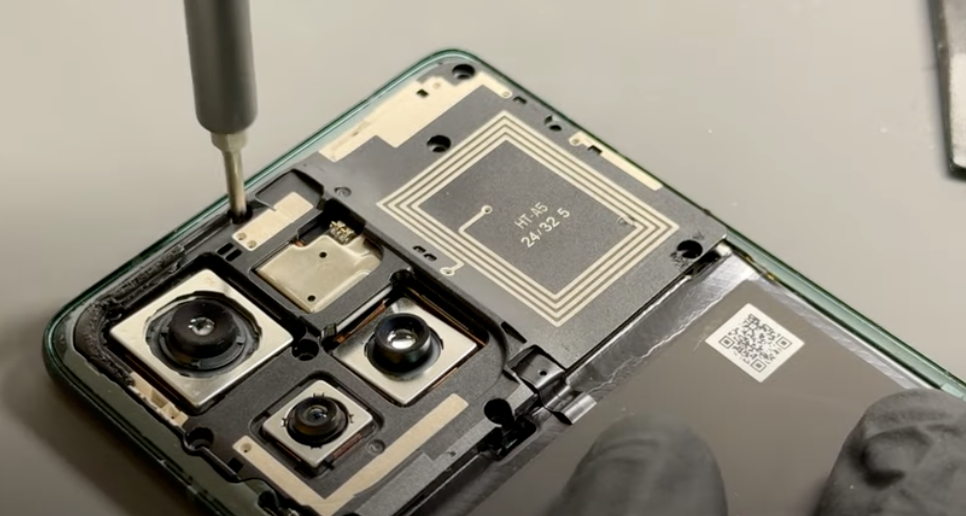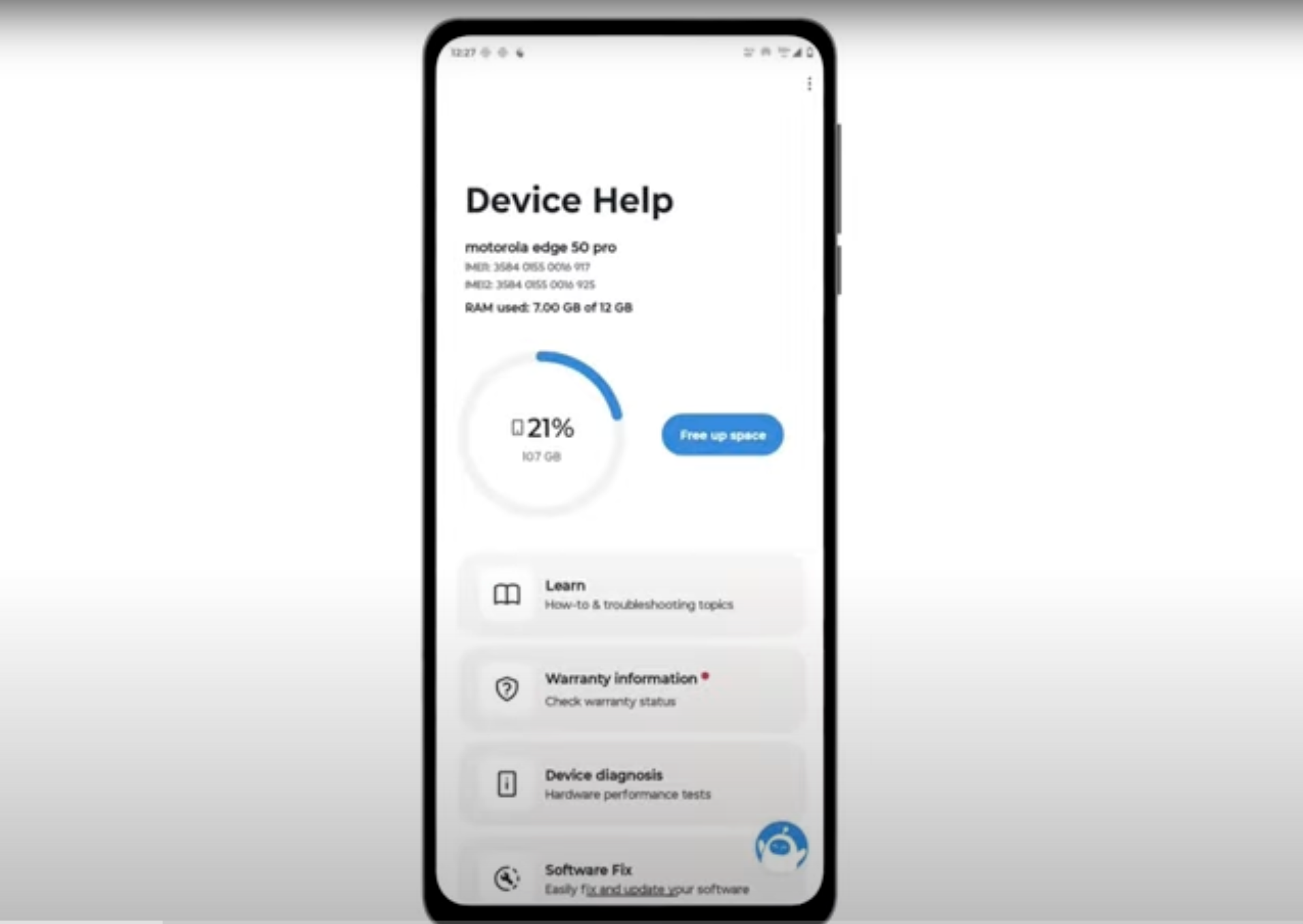
Need to replace one of the cameras? We have you covered - this guide will show you how to access and replace one of the 3 main caemras and the front camera.
Motorola Edge 50 repair
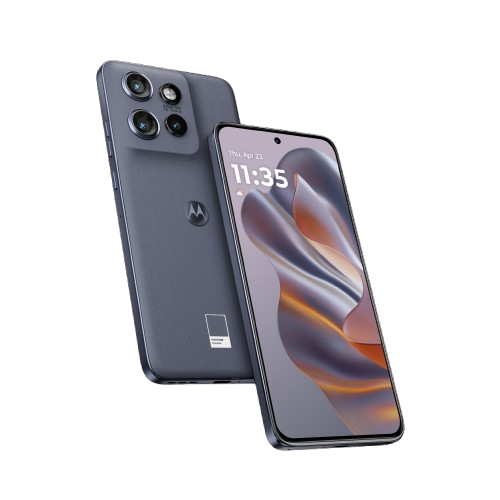
Camera Replacements - Edge 50
25-35 MINUTES
VIDEO / PHOTO GUIDE
Parts Used
Tools & Consumables Required
Technician notes:
Regardless of which camera you are replacing, the removal and installation process is the same. The most important thing is to avoid touching the new camera lens with your finger.
Regardless of which camera you are replacing, the removal and installation process is the same. The most important thing is to avoid touching the new camera lens with your finger.
- SIM Tray Removal
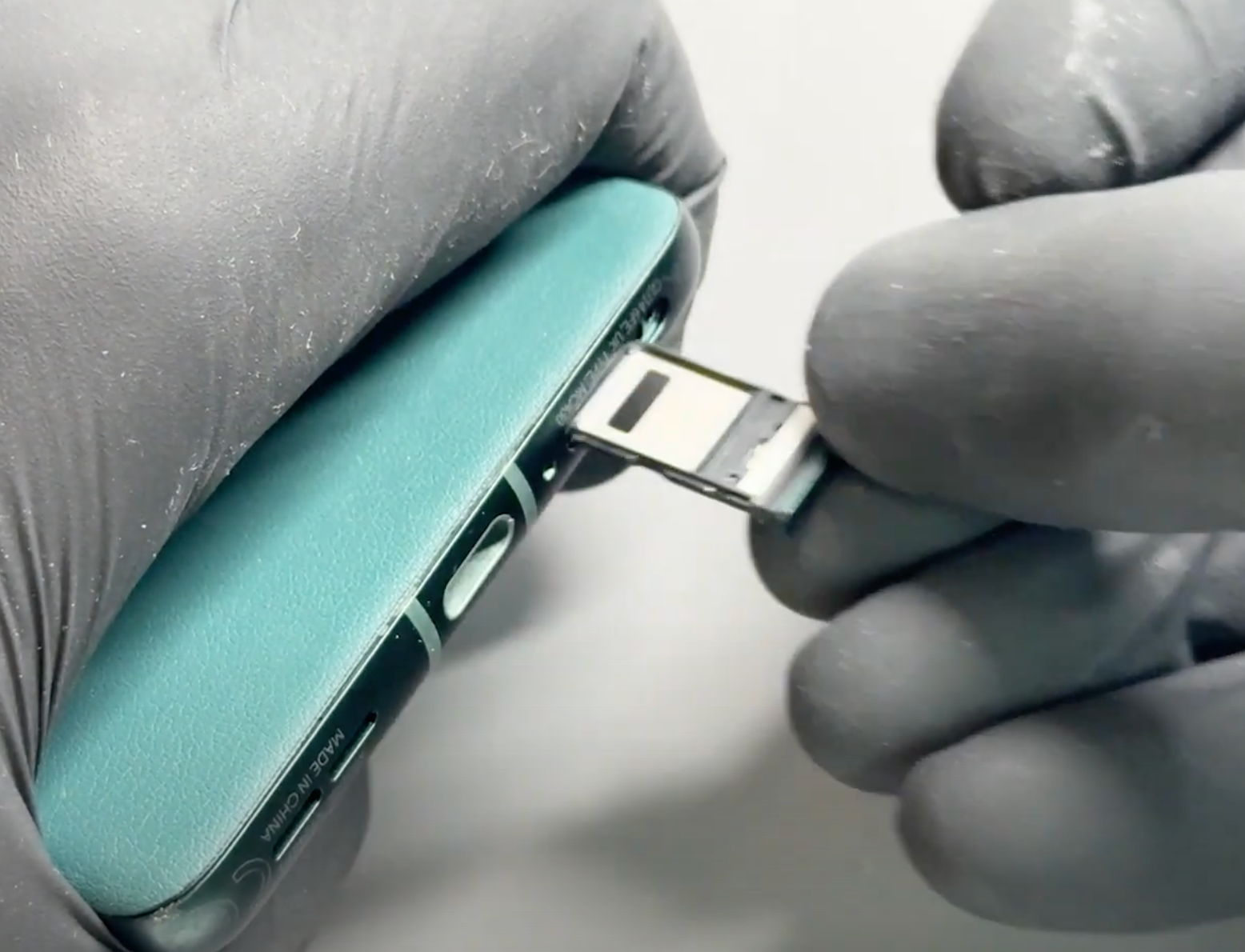

Prepare your work area - once ready, remove your SIM card tray using the SIM Eject Tool.
- Battery Cover Removal
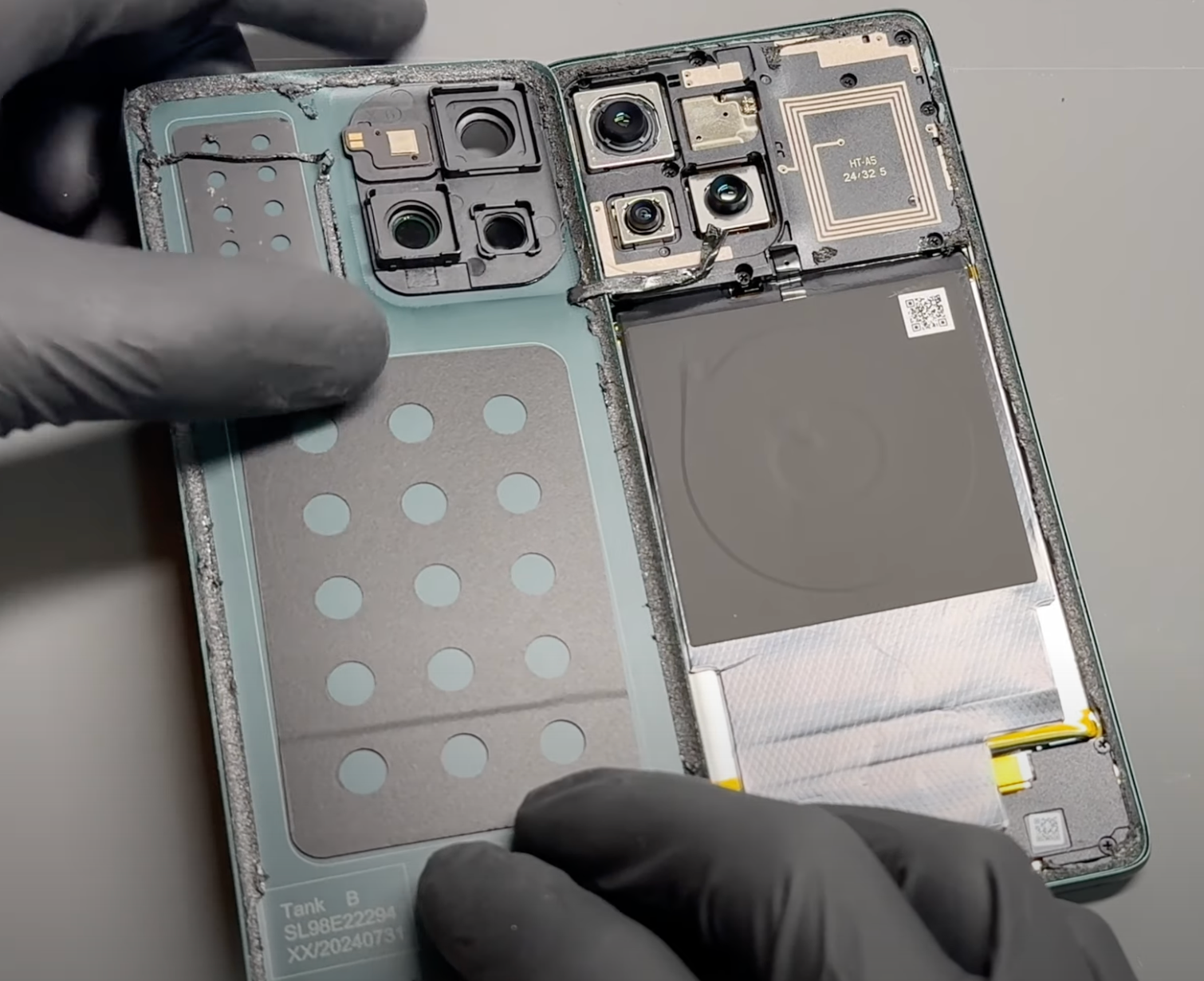
Gently heat the phone’s back cover using a hairdryer on medium or a heat gun on low until it feels warm to the touch. This helps soften the adhesive for easier removal.
Using a metal pry tool or a handled blade, carefully create a small gap between the back cover and the frame. Once a gap is established, insert a plastic card, playing card, or a thick piece of paper. Slowly slide it around the edges to loosen the adhesive seal, taking care not to damage internal components.
Reapply heat as needed to further soften the adhesive. Once the seal is fully loosened, carefully lift the back cover, using the card tool to separate any remaining adhesive. Take your time and proceed gently.
Once separated, carefully remove all old adhesive from both the phone’s frame and the back cover (unless it's being replaced). This step can be time-consuming, so patience is key.
If available, apply a small amount of isopropyl alcohol (IPA) or acetone (such as nail polish remover) to a cotton swab and gently dab it onto the adhesive to help break it down. This will make removal easier and ensure a clean surface for reapplication.
Alternatively, use a plastic or nylon tool to gently scrape off the adhesive without damaging the phone’s frame or components. Be thorough in this step to ensure a secure fit when reattaching the cover.
- Middle Frame & Sub-Board Removal
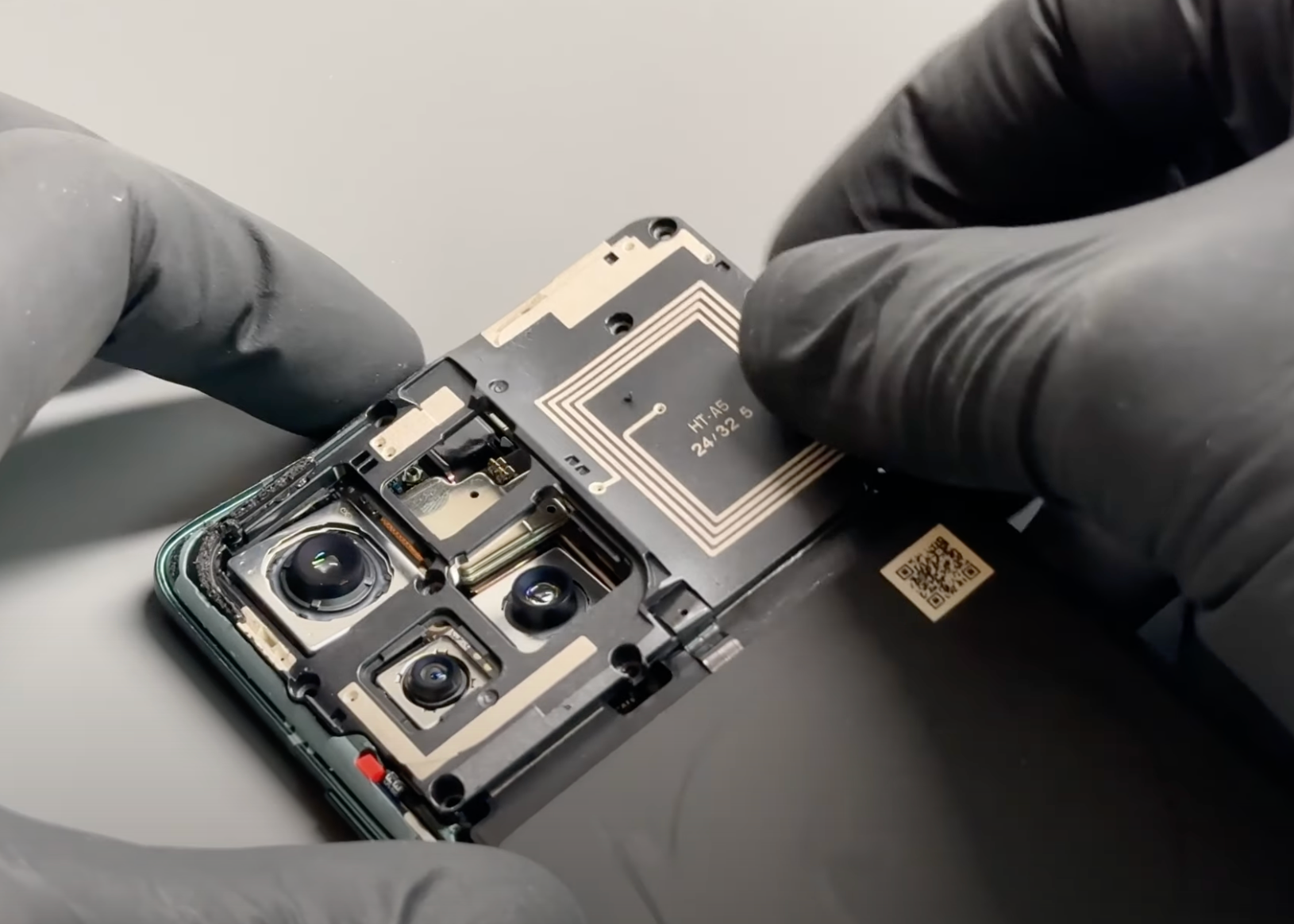
Remove all 10 screws highlighted in the image and place them in a secure area where they are unlikely to be knocked off the table. Keeping them organized will make reassembly easier.
Once the screws are removed, gently pry the adhesive at the bottom of the black wireless charging coil covering the battery. Take your time to avoid tearing or damaging the coil.
Next, release the connector for the sub-board by carefully lifting it from its socket. Then, gently peel up the sticker attached to the sub-board.
Finally, lift out the middle frame, which includes the wireless charging coil, and set it aside in a safe place.
- Camera Removal
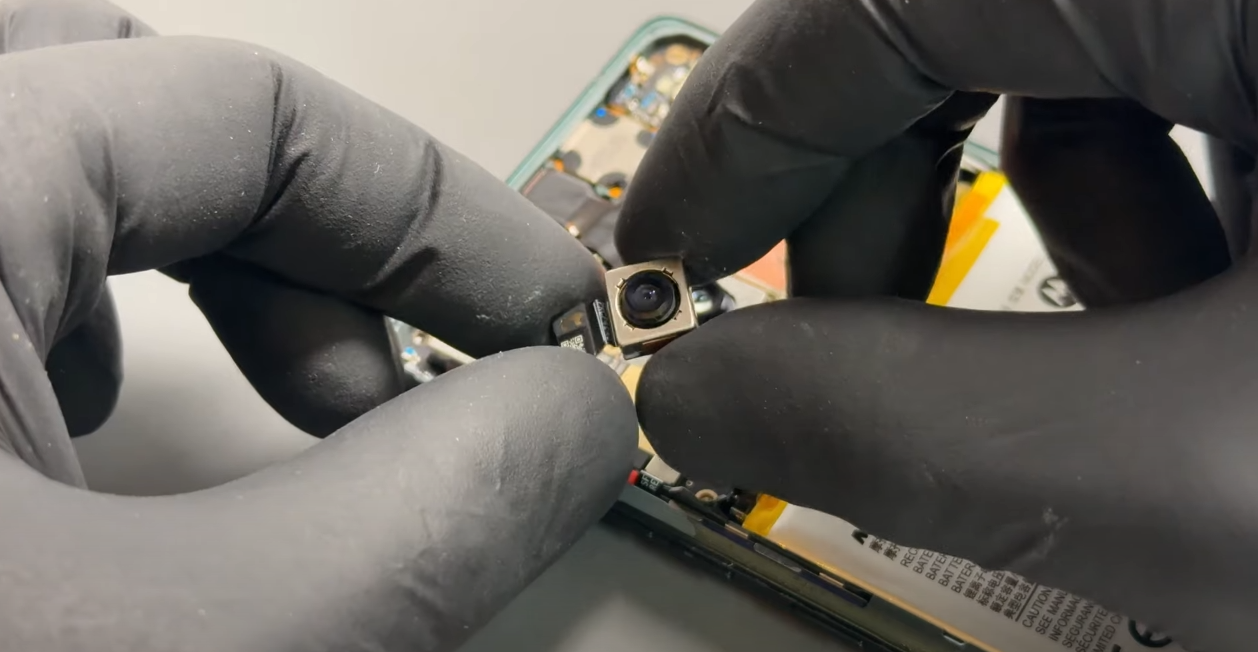
Disconnect the two battery connectors. Once disconnected, use a probe tool to carefully disconnect the required camera by applying slow, firm pressure to gently lever the connector off.
To remove the front camera, gently peel off the black shielding sticker and keep it safe, as you will need to reapply it after installing the new camera.
- Install New Camera
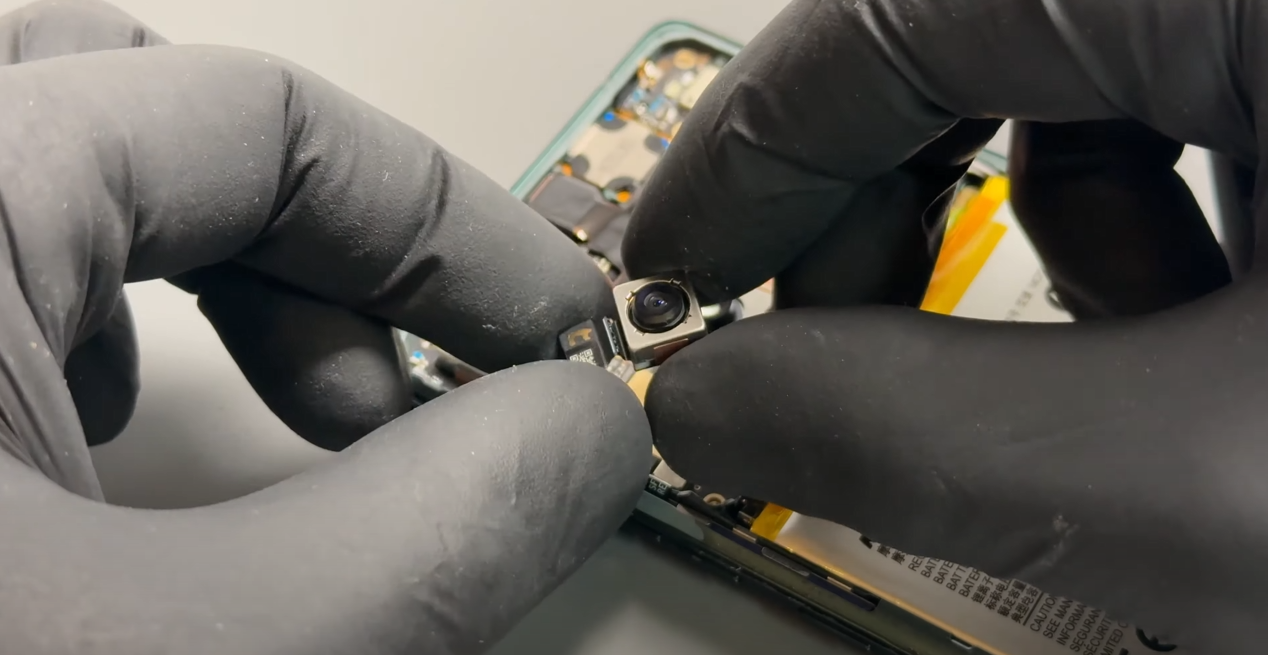
Regardless of which camera you are replacing, the installation process is the same. The new camera will have a straight flex cable— to assist with installation, we recommend folding it as shown in the video.
Remove any protective covers before installing. Avoid touching the new camera lens directly, and ensure all protective films are removed.
Position the camera in place and reconnect the flexible cable connector to the motherboard. If you have replaced the front camera, make sure to reapply the black sticker.
- Middle Frame & Sub-Board installation
Reconnect the sub-board connector and carefully reconnect the FPC (Flexible Printed Circuit), ensuring both are securely seated. The black shielding will remain attached throughout this step.
Once the connections are secure, position the sub-frame with the wireless charging coil back in place, ensuring proper alignment. Apply gentle but firm pressure to the frame to ensure it is fitted correctly and sits flush with the rest of the device.
Finally, reassemble the phone by reinstalling the 10 screws that were removed earlier. These can be fitted in any order—just make sure all screws are tightened securely, but avoid over-tightening to prevent damage.
- Final Testing & Device Help App
Download and run Motorola Smart Assist to fully test your device and follow any required configuration.