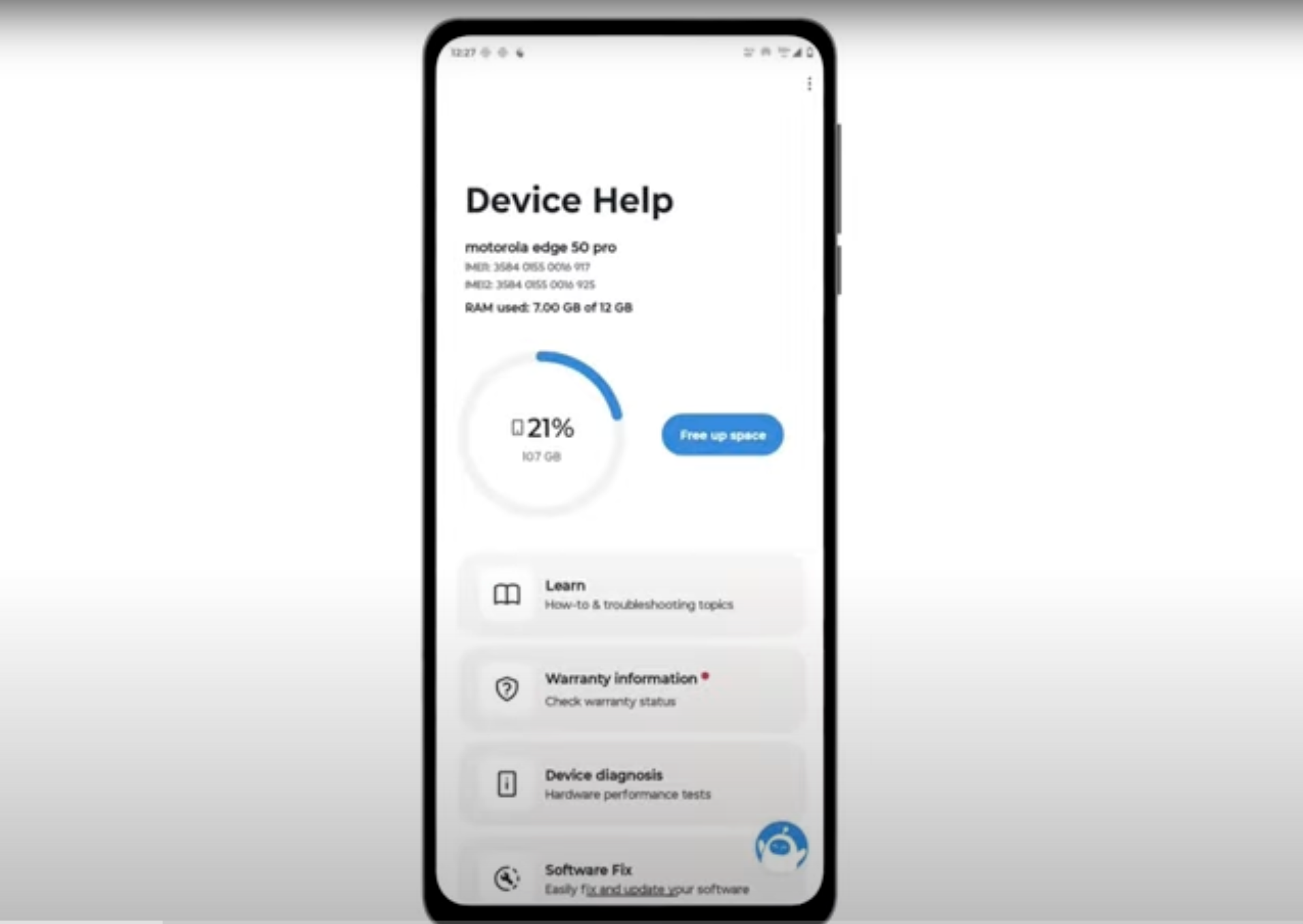
We will show you step by step how to replace the battery in your G75
moto g75 repair

Battery Replacement - G75
40 - 45 MINUTES
VIDEO / PHOTO GUIDE
Parts Used
Tools & Consumables Required
Technician notes:
This process can take some time, so patience is key. Do not rush the job—batteries can be hazardous.
It is best to fully discharge the battery before starting the repair. Never use metal or sharp tools around the battery, never pull or bend the battery, and never apply heat directly to it.
This process can take some time, so patience is key. Do not rush the job—batteries can be hazardous.
It is best to fully discharge the battery before starting the repair. Never use metal or sharp tools around the battery, never pull or bend the battery, and never apply heat directly to it.
- Battery Cover Removal
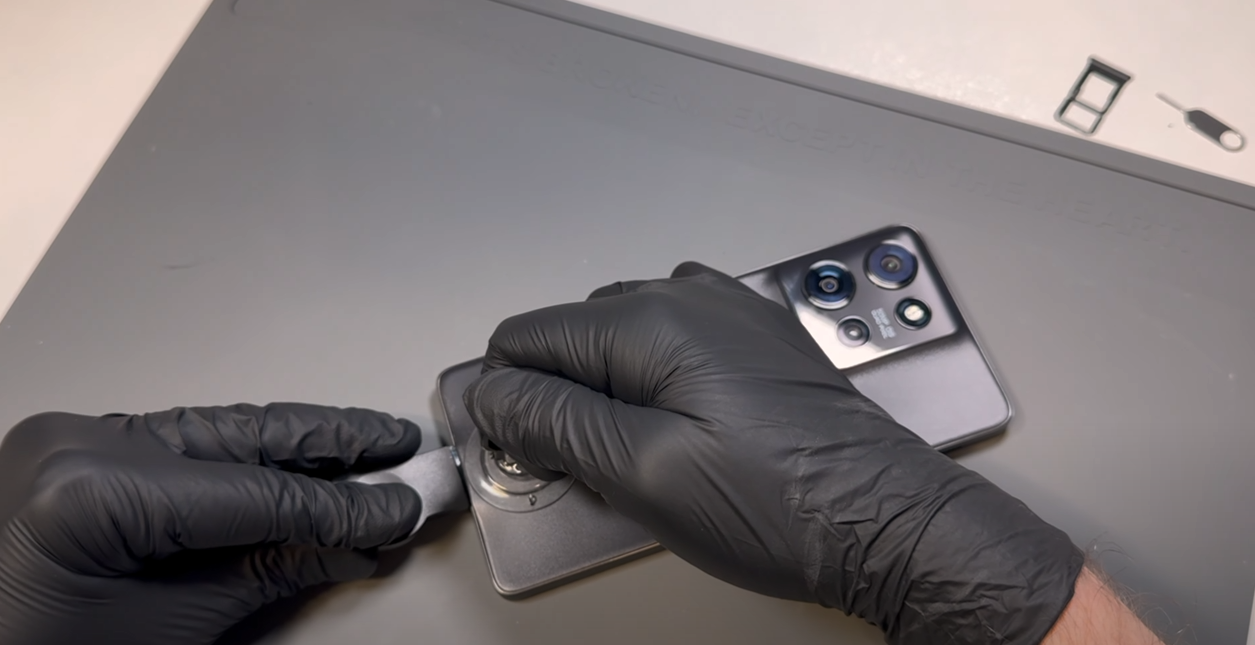

Using the SIM card ejection tool, insert it into the release hole and remove the SIM card tray.
Heat the phone using a hairdryer on a medium setting or a heat gun on a low setting until it is warm to the touch. Once warm, use a plastic blade to create a small gap at the bottom of the phone between the battery cover and the metal frame, using the suction cup if needed. The battery cover is made of a relatively soft material, so don’t worry if it starts to bend slightly—it will return to its normal shape as long as its not bent too much.
Once a gap is made, insert a plastic card and gently slide it around the phone in a back-and-forth motion to begin cutting through the adhesive and breaking the bond. You may need to reapply heat as necessary to keep the adhesive soft.
Be careful not to insert the card too deeply into the phone—1-2 cm should be the maximum depth needed.
Once all adhesive has been cut and the battery cover is loose, wriggle the cover left and right to complete the separation - dont pull it off causing a bend.
- Sub Frame Removal
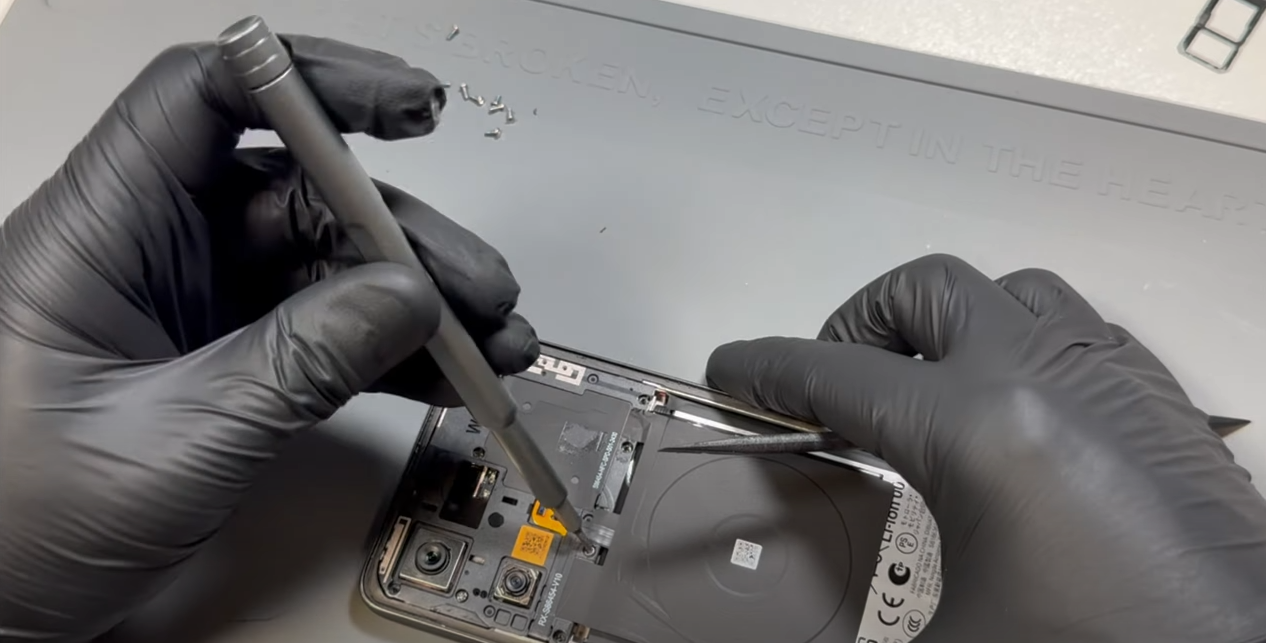
Remove all 10 screws from the subframe. These screws can be tricky to remove, even with a magnetic driver. The best approach is to either use tweezers to lift them out while unscrewing, gently pry them up as they loosen, or leave them in place and remove them after the frame is detached.
Once all screws are removed (or fully loosened but left in place), lift the subframe away from the phone. The wireless charging coil is attached to the black graphene tape with mild adhesive. Carefully separate them by peeling the coil away.
- Battery Removal
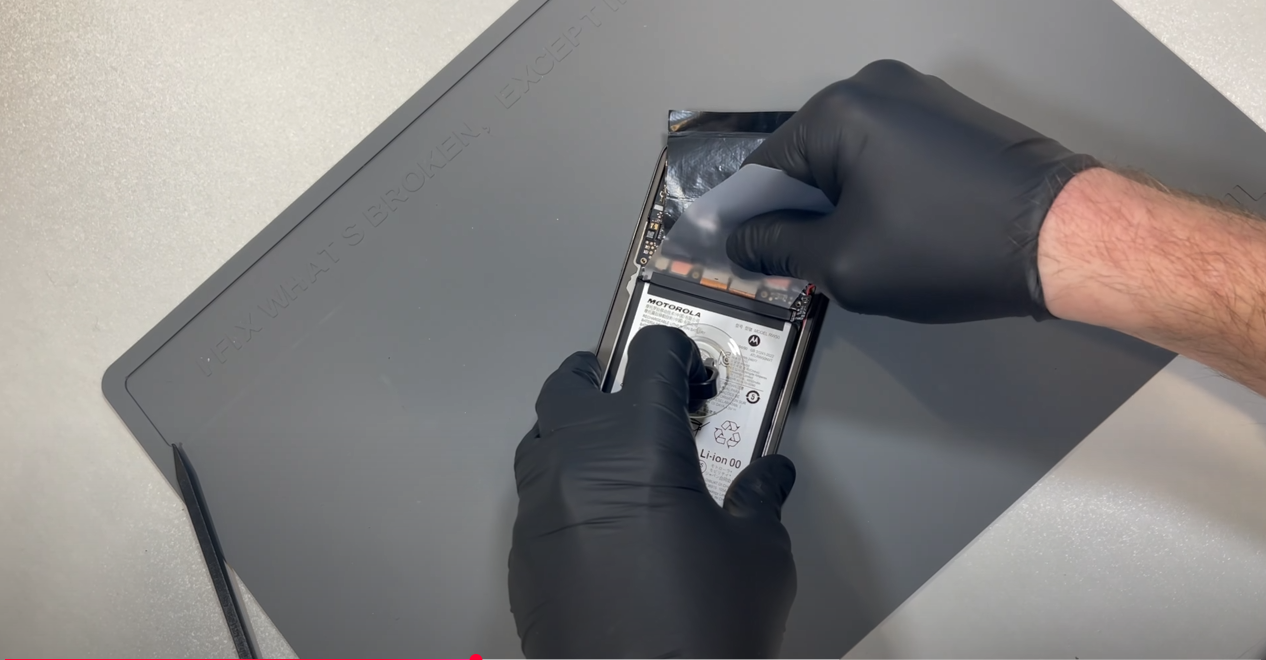
This step can be time-consuming, so it’s important not to rush or be tempted to use prying tools or anything metal. Bending, puncturing, or cutting the battery can be hazardous.
If possible, fully discharge your battery before starting this repair.
Disconnect the battery connector, flip the phone over, and apply heat using a hairdryer on a medium setting or a heat gun on a low setting. Do not apply direct heat to the battery. This process can take time, as the heat needs to transfer through the screen to the battery adhesive—potentially five minutes or longer. You may need to continue reapplying heat throughout the process.
Using a suction cup to help create upward pressure, slide a removal card along the top edge of the battery. Be mindful of the flex cables located near the battery and avoid snagging them with the tool.
Gradually use a back-and-forth motion to cut through the adhesive bond. Once a few centimeters of adhesive have been cut, reposition the suction cup and focus on the left corner of the battery. Cutting the adhesive in this corner will create a good entry point along the side of the battery.
Continue working along both sides of the battery. Once the adhesive is sufficiently cut, you should be able to remove the battery using the suction cup tool.
Once removed, remove any clumps of old adheisve that remain on the phones frame - leaving the sticky resudue is no problem.
- Battery Installation
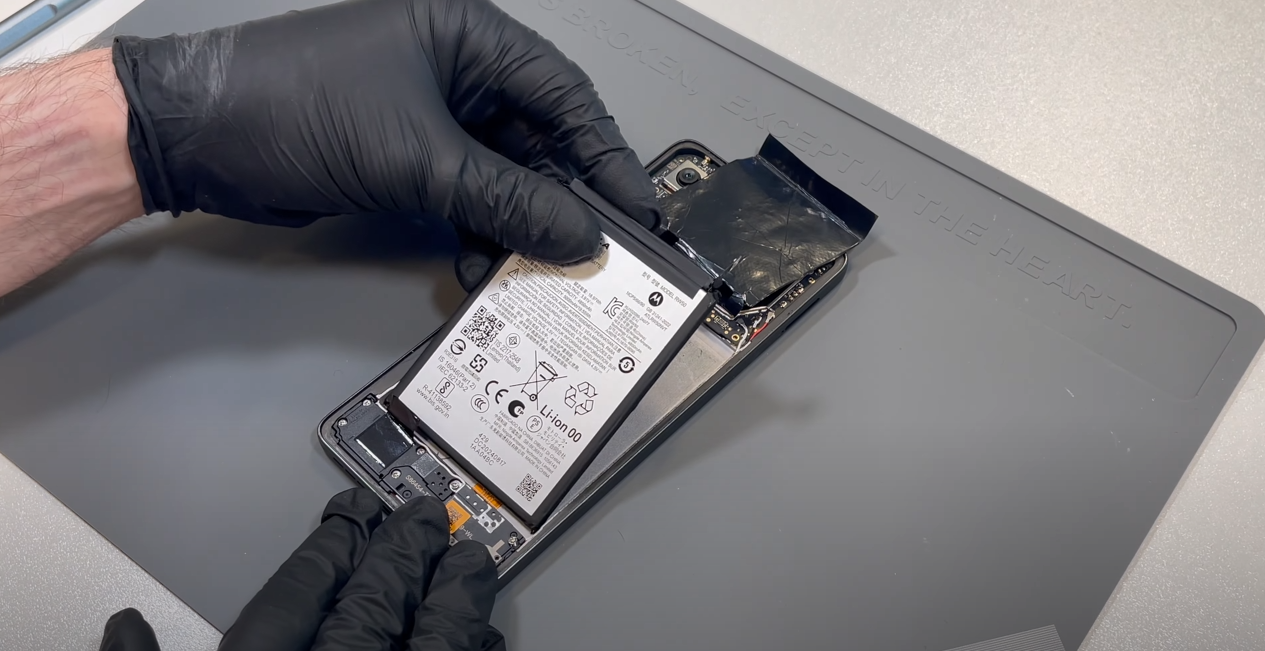
Ensure that the surface where the new battery will be installed is clean and free from clumps of old adhesive. A slightly tacky surface is fine.
Peel the protective layer from the battery adhesive on the left side and install it into place, then repeat for the right side. Run your finger along the adhesive to ensure it bonds securely.
Once you're satisfied with the placement, use a fingernail or a probe tool to expose the adhesive by removing the top layer.
Install the battery in place and firmly press down to secure it.
Reconnect the battery connector.
-
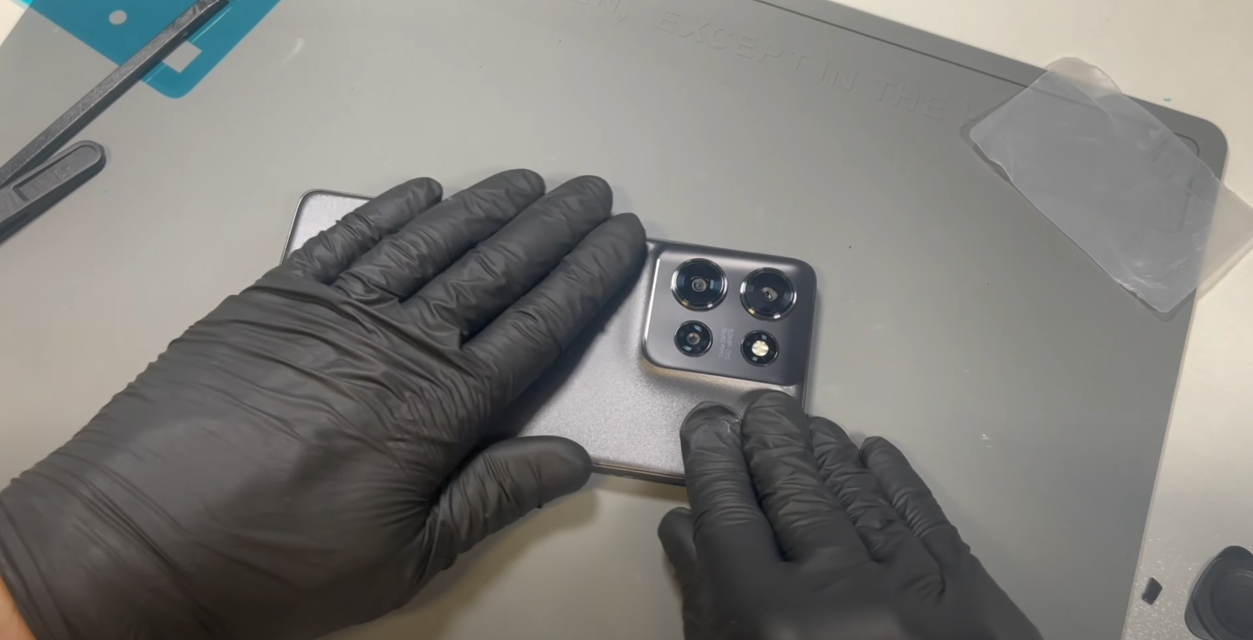
Fully clean the old adhesive from the phone’s frame. This can be a bit stubborn, so applying heat will help. Use only plastic tools or your finger to rub off the adhesive. If you're installing a new screen, you can skip this step.
Next, fully clean any old adhesive from the battery cover using the same approach as above.
Install the new battery cover gasket/adhesive. Remove the top layer to expose the sticky surface. Take your time aligning the adhesive to the battery cover—gently rest it on top, and if it's not positioned correctly, carefully remove and reapply.
Once satisfied with the placement, apply firm pressure all around the adhesive to ensure it bonds to the battery cover.
Peel off the protective layer from the adhesive on the battery cover, carefully place the cover onto the phone, and apply pressure all around to ensure a secure fit.
- Final Testing & Device Help App
Download and run Motorola Smart Assist to fully test your device and follow any required configuration.