Battery not holding up? We've got you covered with a step-by-step guide to help you replace it with ease.
moto g35 repair

Battery Replacement - G35
35-40 MINUTES
VIDEO / PHOTO GUIDE
Parts Used
Tools & Consumables Required
Technician notes:
Overall, this isn’t a difficult repair—the easy battery removal system makes the process much smoother! Just remember to use heat, stay patient, and take the time to remove all the old adhesive properly.
Overall, this isn’t a difficult repair—the easy battery removal system makes the process much smoother! Just remember to use heat, stay patient, and take the time to remove all the old adhesive properly.
- SIM Tray Removal
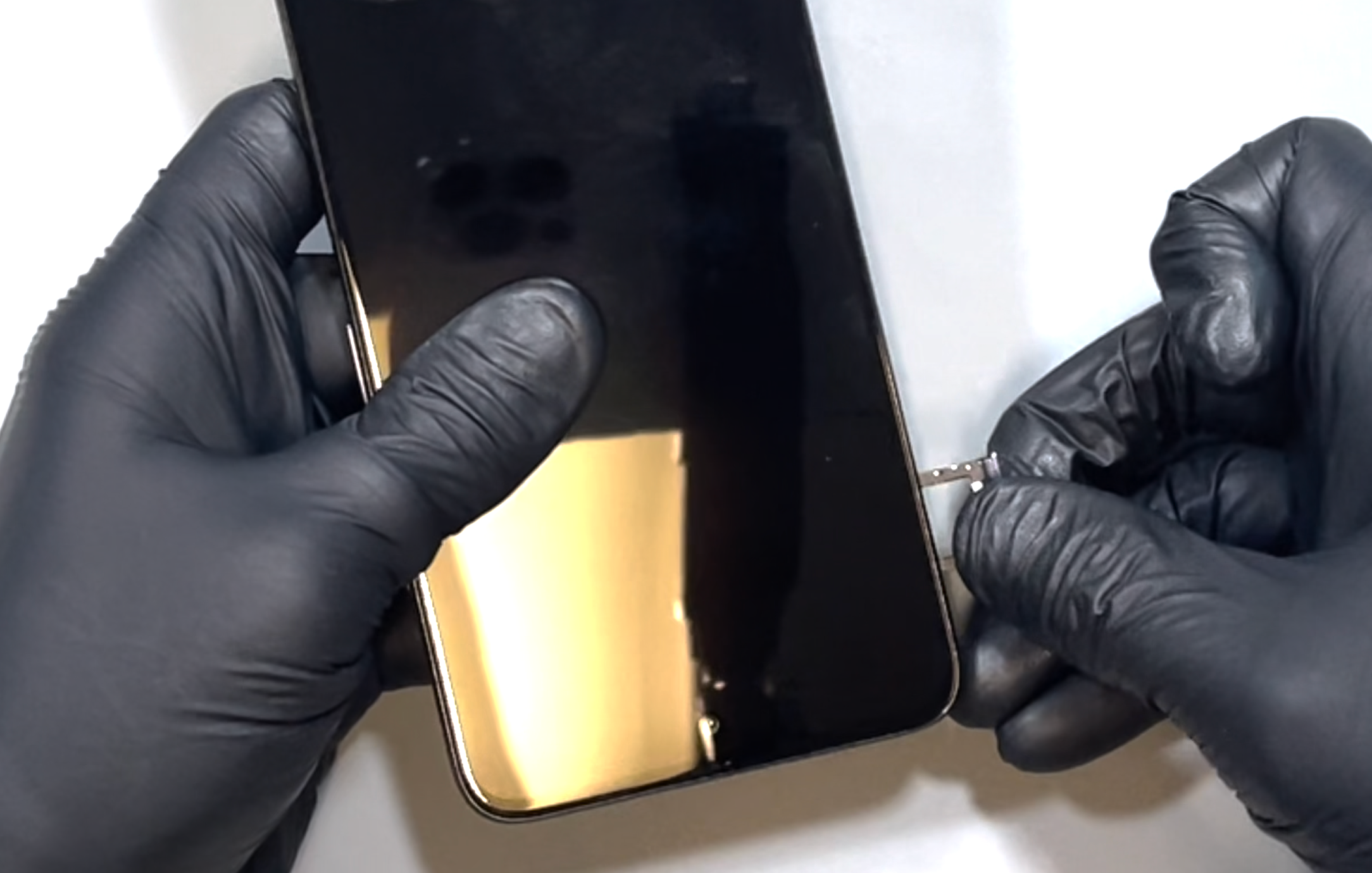

Using a SIM eject pin tool, push into the hole next to the SIM tray until the tray pops out. Remove it by hand and set it aside.
- Battery Cover Removal
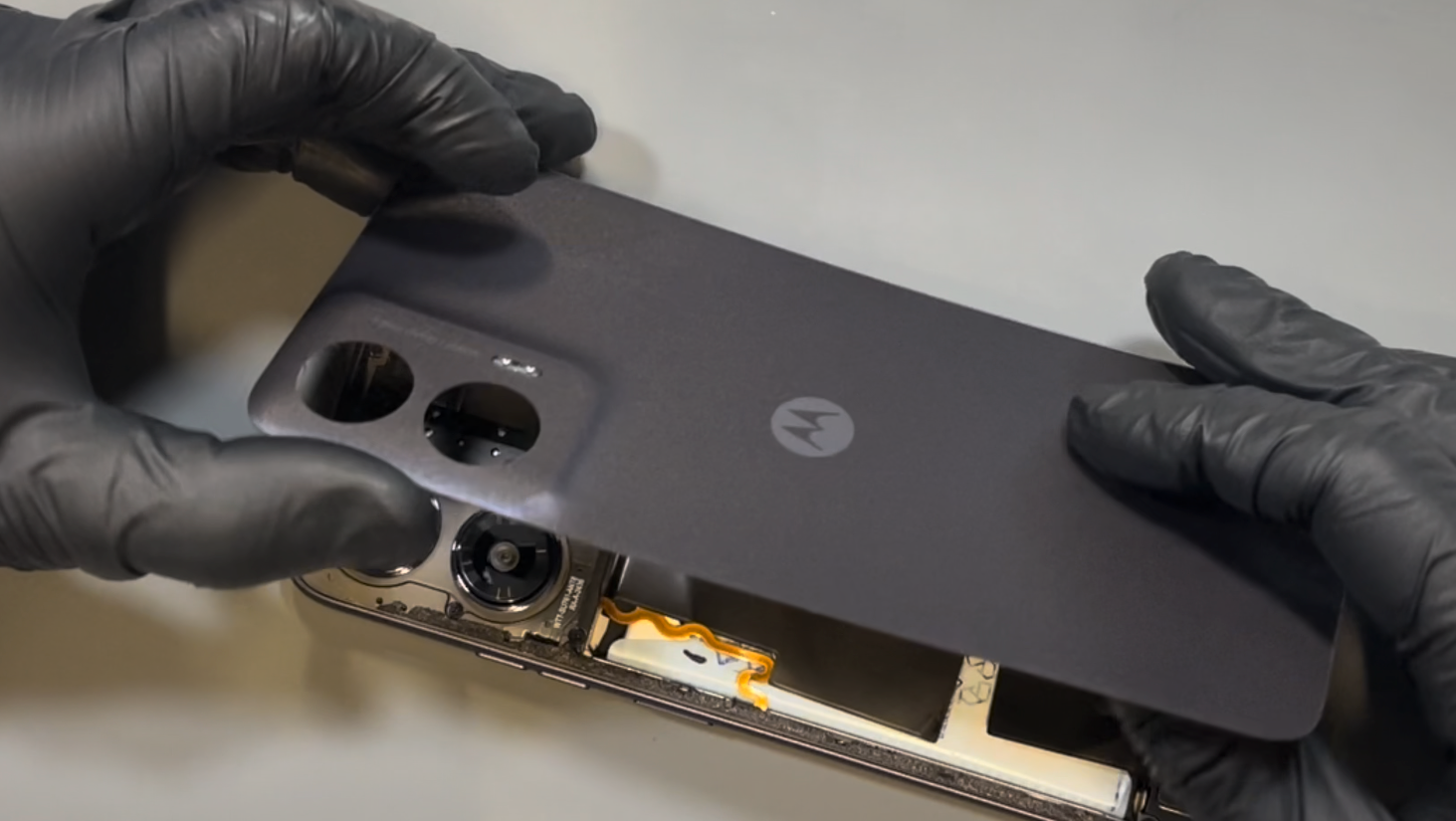
Using a heat gun on a low setting or a hairdryer on medium, warm the back of the phone until it’s comfortably warm to the touch.
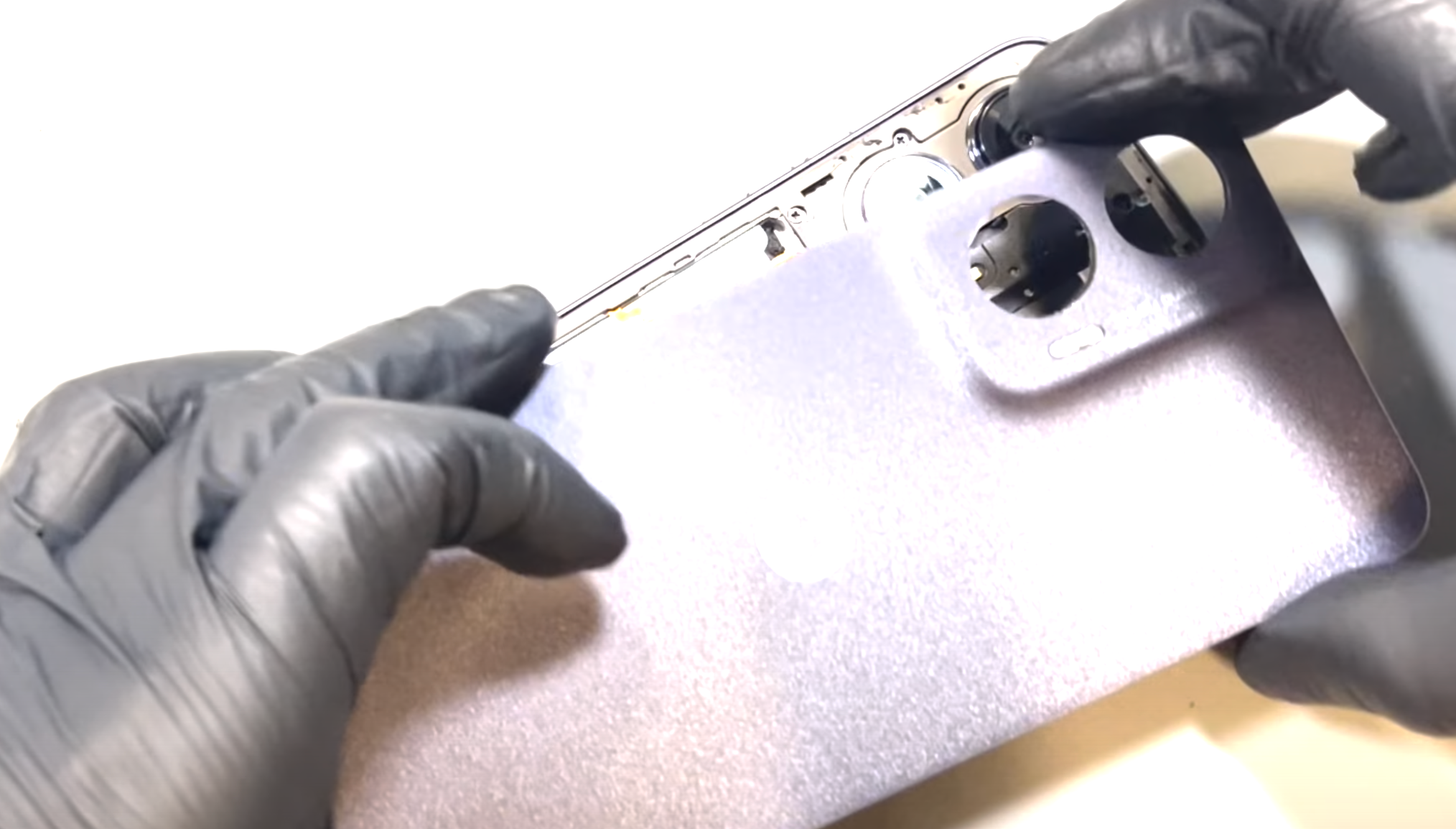
With a thin spudger or playing card and a suction cup, begin separating the back cover from the phone’s frame. Work the card around the device in a counterclockwise direction, reheating as needed to keep the adhesive soft. Be careful not to insert the card more than 10mm—especially on the left side, where delicate components are located.
Continue until the adhesive seal is fully broken. Once the cover feels loose, gently wriggle it free until it separates completely from the device.
- Chassis / Frame Removal
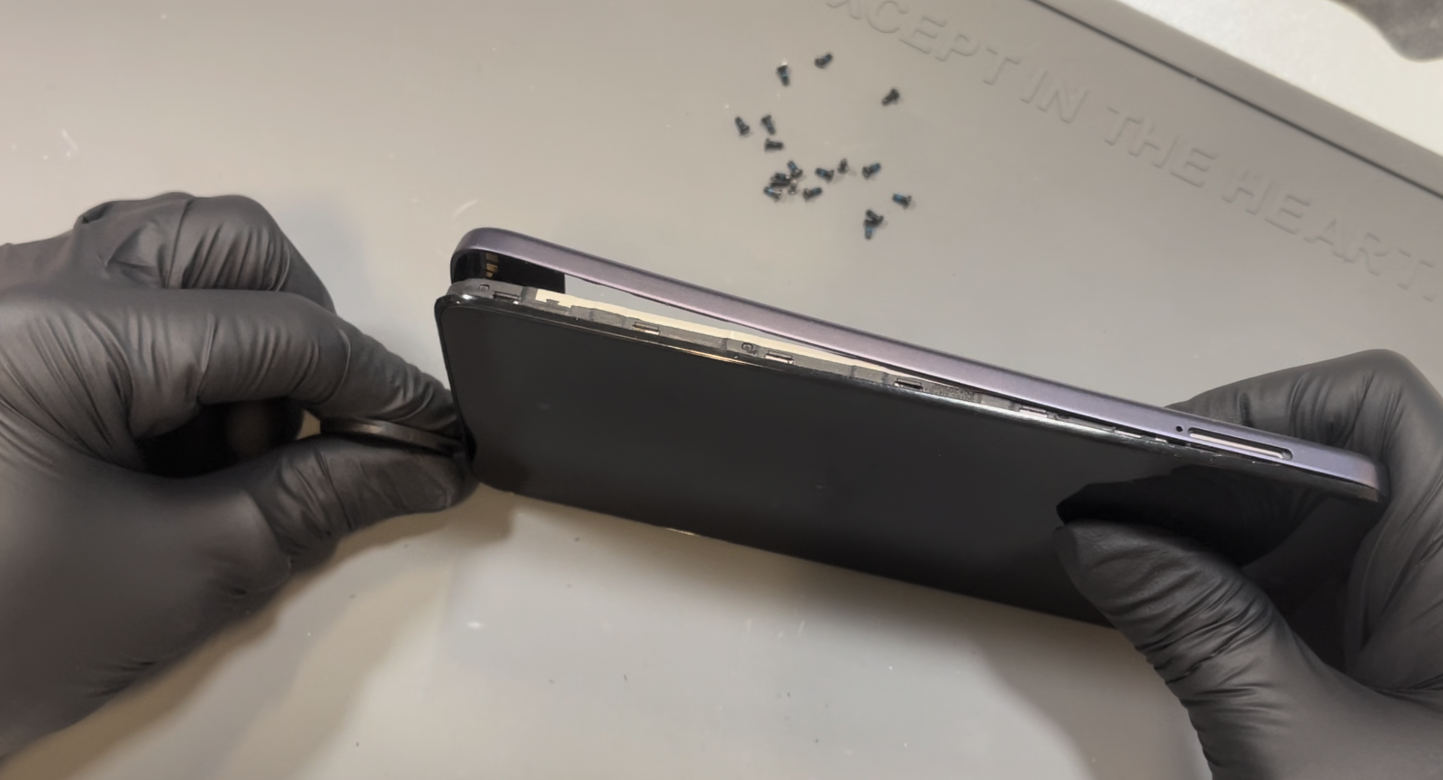
Remove the 18 screws holding the frame in place. This includes the white-tipped screw near the loudspeaker. Some screws may not lift out with the magnetic driver—use tweezers to help remove them if needed.
Once all screws are removed, insert a pick or prying tool near the empty SIM card slot for easy access, and gently rotate it around the phone to release the frame. This part of the process is typically quite easy.
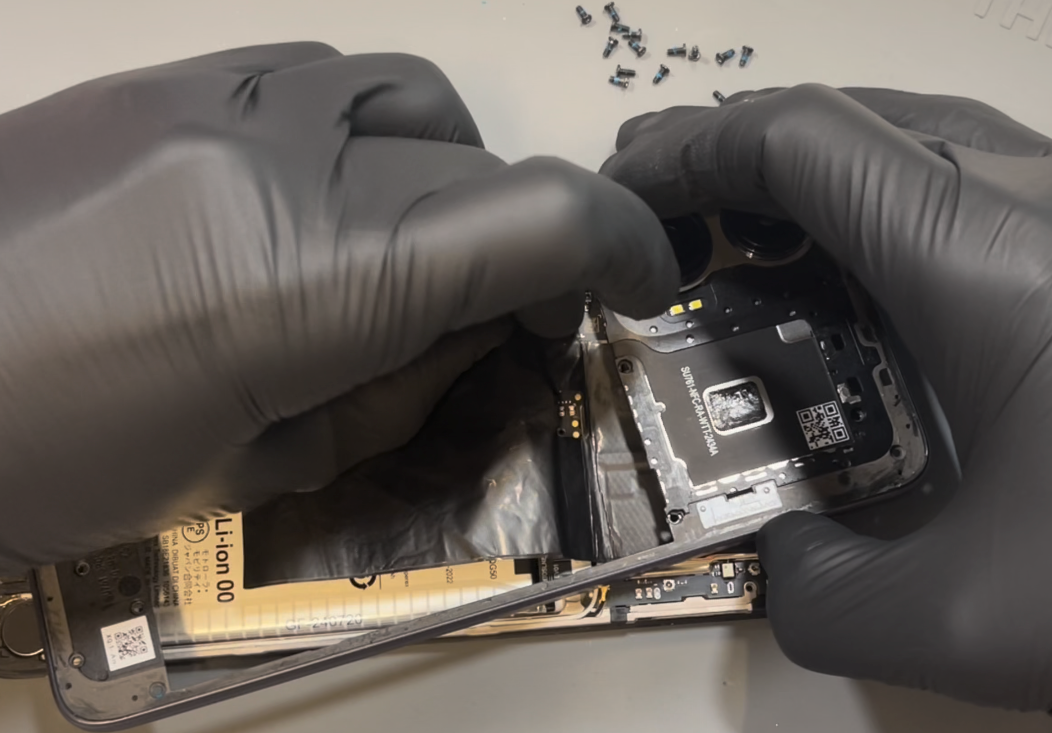
After separating the perimeter, lay the phone flat on the table and carefully lift the frame slightly. You only need to lift it enough to expose the fingerprint sensor cable connection.
Once the connector is visible, disconnect it carefully. You can now set the chassis aside.
Next, disconnect the battery from the motherboard.
- Battery Removal
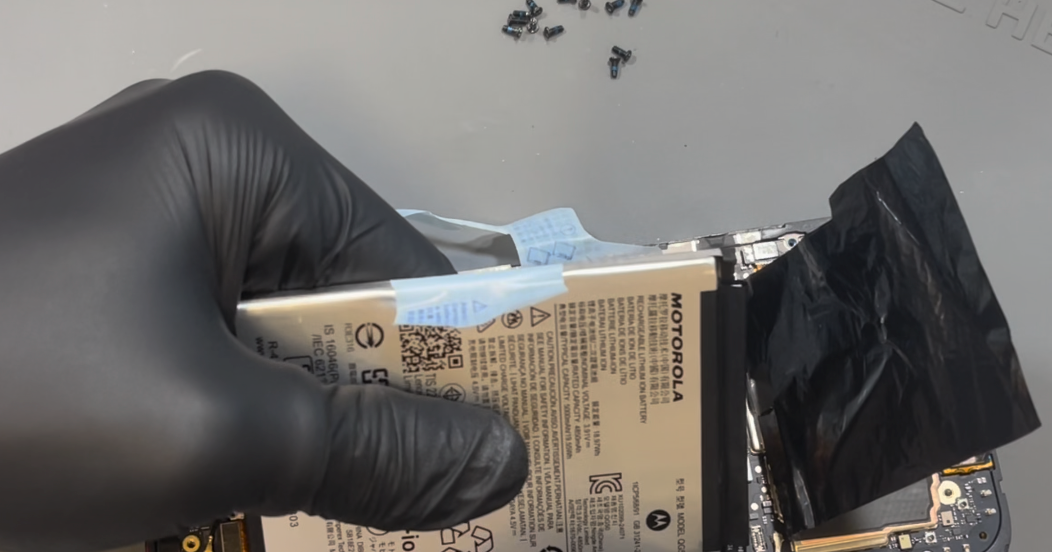
Lift out the loudspeaker in the bottom left of the device and set it aside.
Heat the front of the phone using a hairdryer or a heat gun on a low setting until it is warm to the touch.
The G35 features an easy removal system for the battery. Start by peeling sections 1 and 2, followed by section 3. While sections 1 and 2 are being held down, apply an upward pulling motion on section 3—this may require a bit of force.
Once the battery is removed, peel away and remove any remaining adhesive from the frame.
- Battery Install
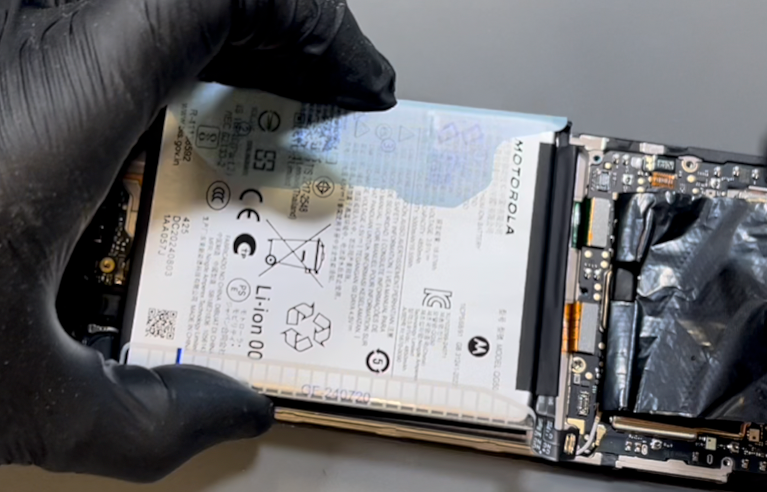
Peel the battery adhesive from its plastic backing and position it onto the phone’s frame—use the etched alignment guides for accuracy. Once you're happy with the placement, press down gently to help it bond. Then, remove the top layer and press the battery firmly into place.
- Frame Re-Assembly
Reconnect the battery and then connect the flex cable for the fingerprint sensor. This step can be a little tricky, as the frame needs to be loosely positioned on the phone to allow access to the connector.
Once the fingerprint sensor is connected, press the frame into place and apply firm, even pressure all around the edges. You should hear several clicks as the frame snaps into position, and there should be no visible gaps around the phone.
Once everything is aligned and secured, reinstall all the screws in any order. Do not overtighten them—just enough to hold everything firmly in place.
- Battery Cover Installation
Start by removing all old adhesive from the phone’s frame. Light residue or faint marks are fine, but any thick or clumped adhesive must be fully cleared. Repeat this process for the battery cover. This step can take some time—be patient, and use gentle heat if needed to soften any stubborn residue.
Once both surfaces are clean, you’ll need to install four sections of adhesive. You should be able to see the outline of the original adhesive on your old panel—if not, refer to the video for guidance.
Begin by peeling the backing off the smallest section of adhesive and placing it in the bottom right corner. Next, take the single sheet with four sections and apply it to the top left quarter of the battery cover, as shown in the video. Then, align the next piece of adhesive around the camera cutouts and flash diffuser.
Each adhesive section can be repositioned until firmly pressed. Before applying pressure, make sure no adhesive is overhanging the edges of the battery cover. Once you're happy with the placement, apply firm pressure across all adhesive areas to secure them, then set the cover aside for five minutes to allow the adhesive to begin setting.
Finally, peel the backing off the main battery cover adhesive. Align it using the top edge and corners of the phone as a guide. Gently rest it in place to check alignment. If needed, lift and reposition it carefully. Once satisfied, press down evenly across the adhesive to ensure a strong bond.
When everything is aligned, remove all remaining protective films. Place the battery cover onto the phone, once again aligning it with the top edge and corners. Press firmly around the entire perimeter and around the camera lenses until the cover feels fully secure and properly sealed.
- Final Testing & Device Help App
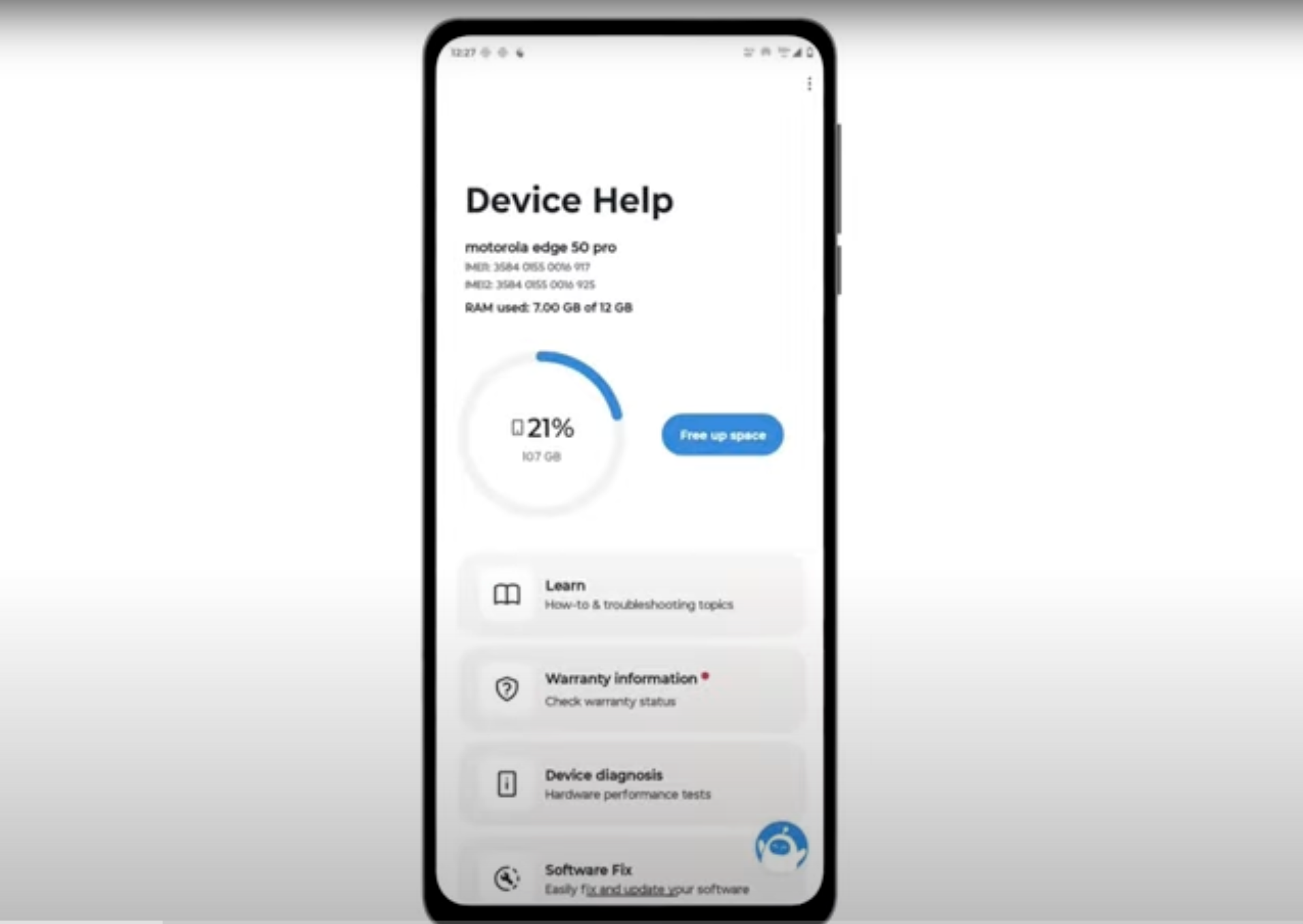
Download and run Motorola Smart Assist to fully test your device and follow any required configuration.