A complete, step-by-step guide covering every detail of the screen replacement—no steps skipped, no guesswork needed. Just follow along and get your device looking brand new!
moto g05 repair
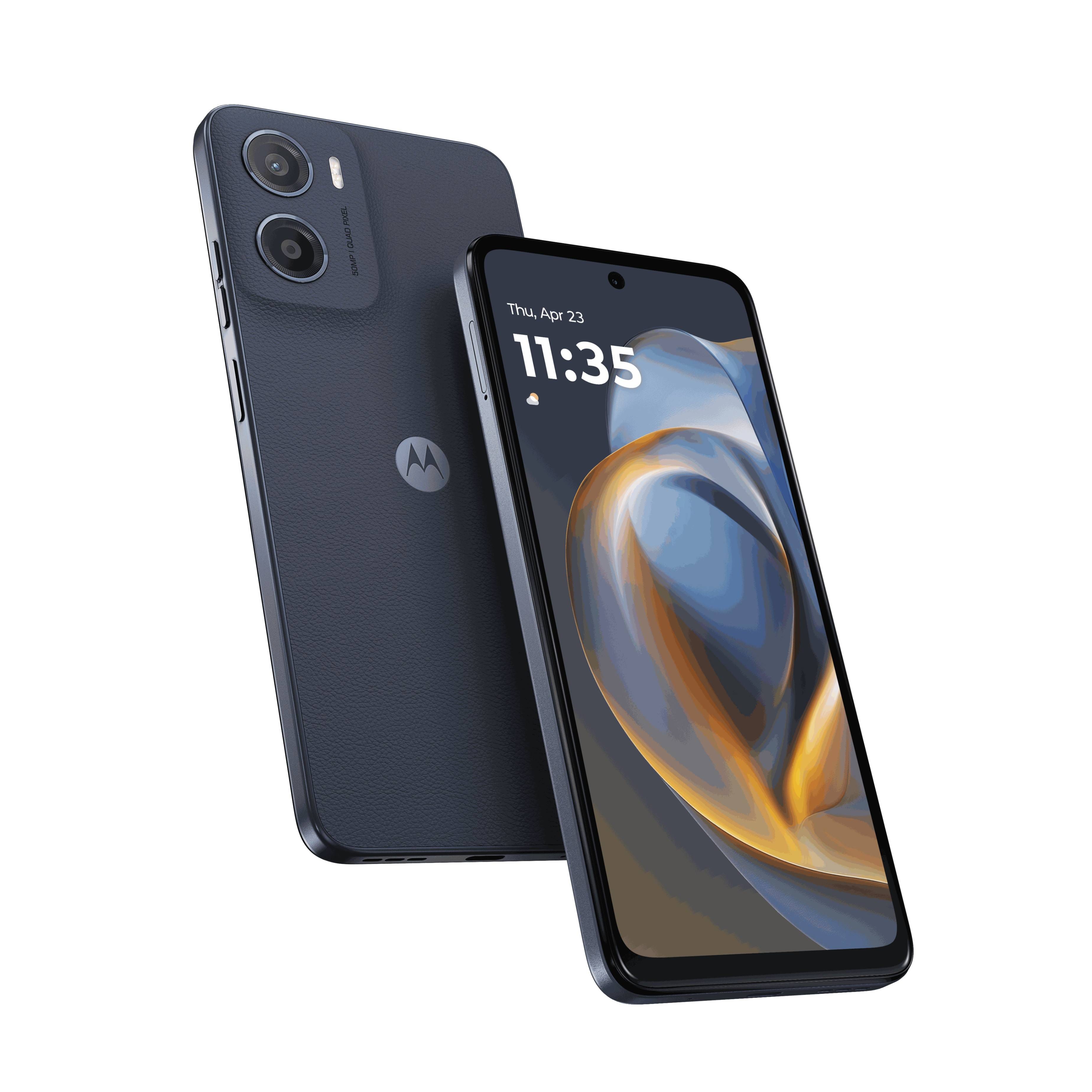
g05 - screen replacement
40-50 MINUTES
VIDEO / PHOTO GUIDE
Parts Used
Tools & Consumables Required
Technician notes:
Did you know the entire G05 is built around the screen? That means everything needs to be transferred over—but don’t worry, it’s not difficult. Just take your time and stay focused. While you’re in there, it’s a great opportunity to consider replacing the battery too, especially if your phone is over 12 months old.
Did you know the entire G05 is built around the screen? That means everything needs to be transferred over—but don’t worry, it’s not difficult. Just take your time and stay focused. While you’re in there, it’s a great opportunity to consider replacing the battery too, especially if your phone is over 12 months old.
- SIM Eject & Battery Cover Removal
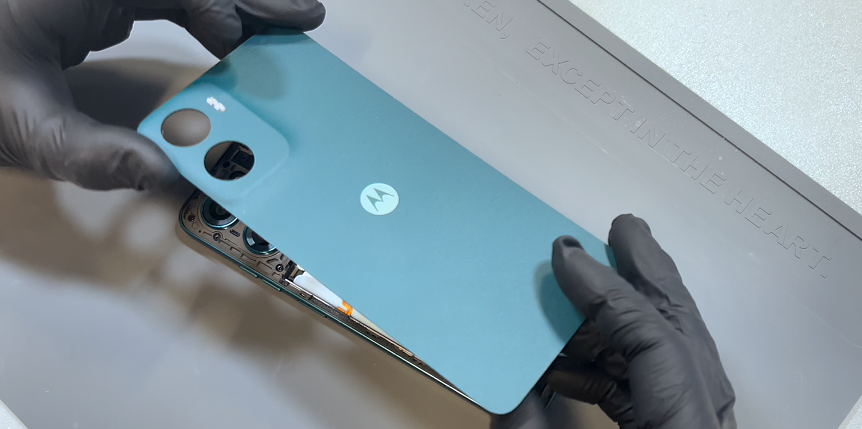

Use the SIM eject tool to press into the small hole next to the SIM tray—this will pop the tray out just enough for you to remove it by hand. Set the tray aside safely.
Next, warm up the battery cover, focusing on the edges. Use a heat gun on a low setting or a hairdryer on medium until the cover feels warm to the touch.
Use the blade tool to carefully create a small gap at the bottom of the phone. Once there's enough space, insert the card tool and begin working it counter-clockwise around the device. Be sure to insert the card no deeper than 1–2 cm.
Take extra care on the left-hand side near the volume buttons—there's a flex cable here that can be easily damaged if the card goes too deep. Reapply heat as needed to soften the adhesive.
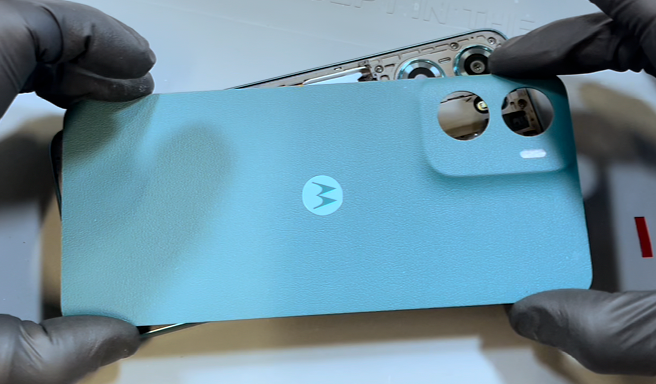
Once you've worked around the entire edge and broken the seal, gently wriggle the back cover off. This will release any remaining adhesive, particularly around the camera area.
- Chassis Removal
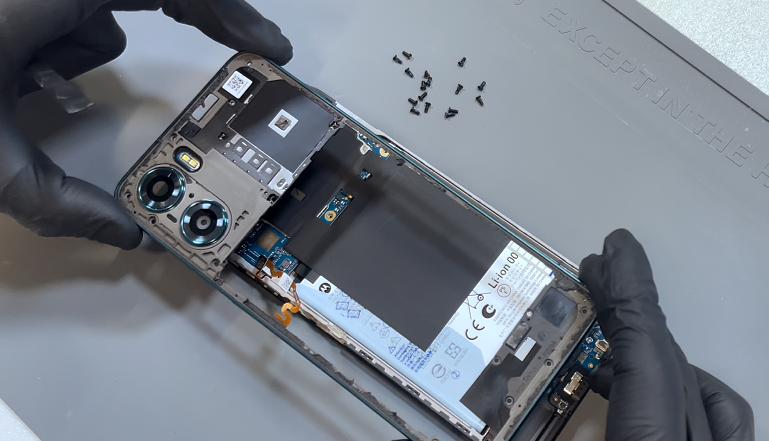
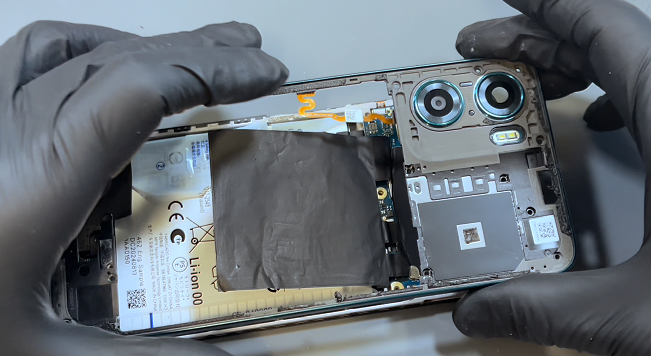
Remove the screws securing the internal frame—there are 9 at the top and 7 at the bottom. Once removed, double-check to ensure none have been missed.
Using a solid pry tool, begin separating the chassis from the screen. The easiest entry point is next to the empty SIM card slot. Insert the tool to create a small gap, then work your way around the entire edge of the phone. No adhesive is used here, so the frame should unclip with gentle pressure.
Once the frame is free, place the phone face down and slowly lift the frame. Be careful—there’s a flex cable connecting it to the motherboard. Gently lift just enough to see the connector, then use a probe tool to disconnect it, as shown in the video. Once released, set the frame aside.
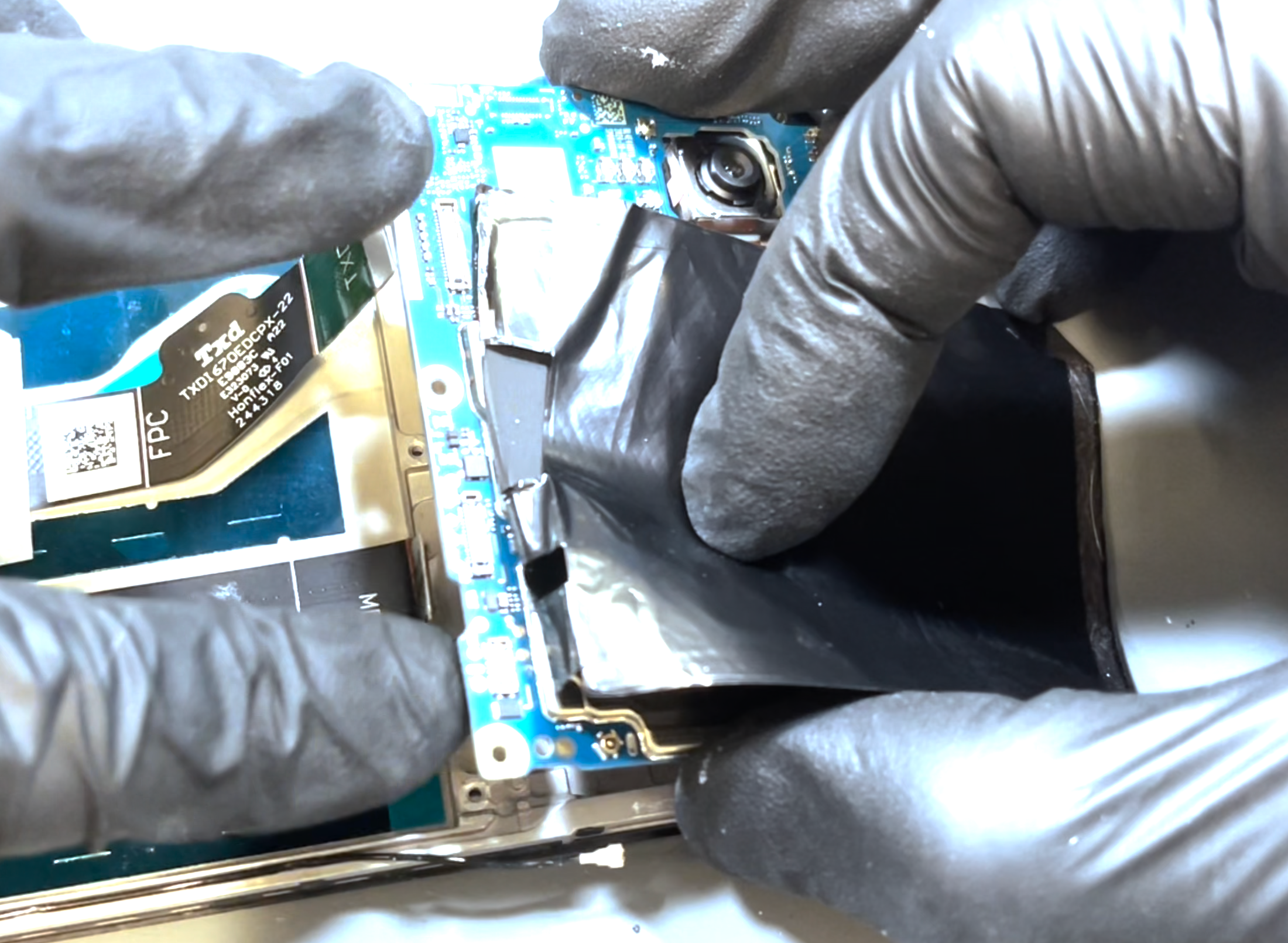
Next, remove the black shielding lightly bonded to the battery. Slide a card tool underneath and work it back and forth to loosen the adhesive. Peel the shield away, then locate the battery connector on the far-right side and disconnect it.
- Battery Removal
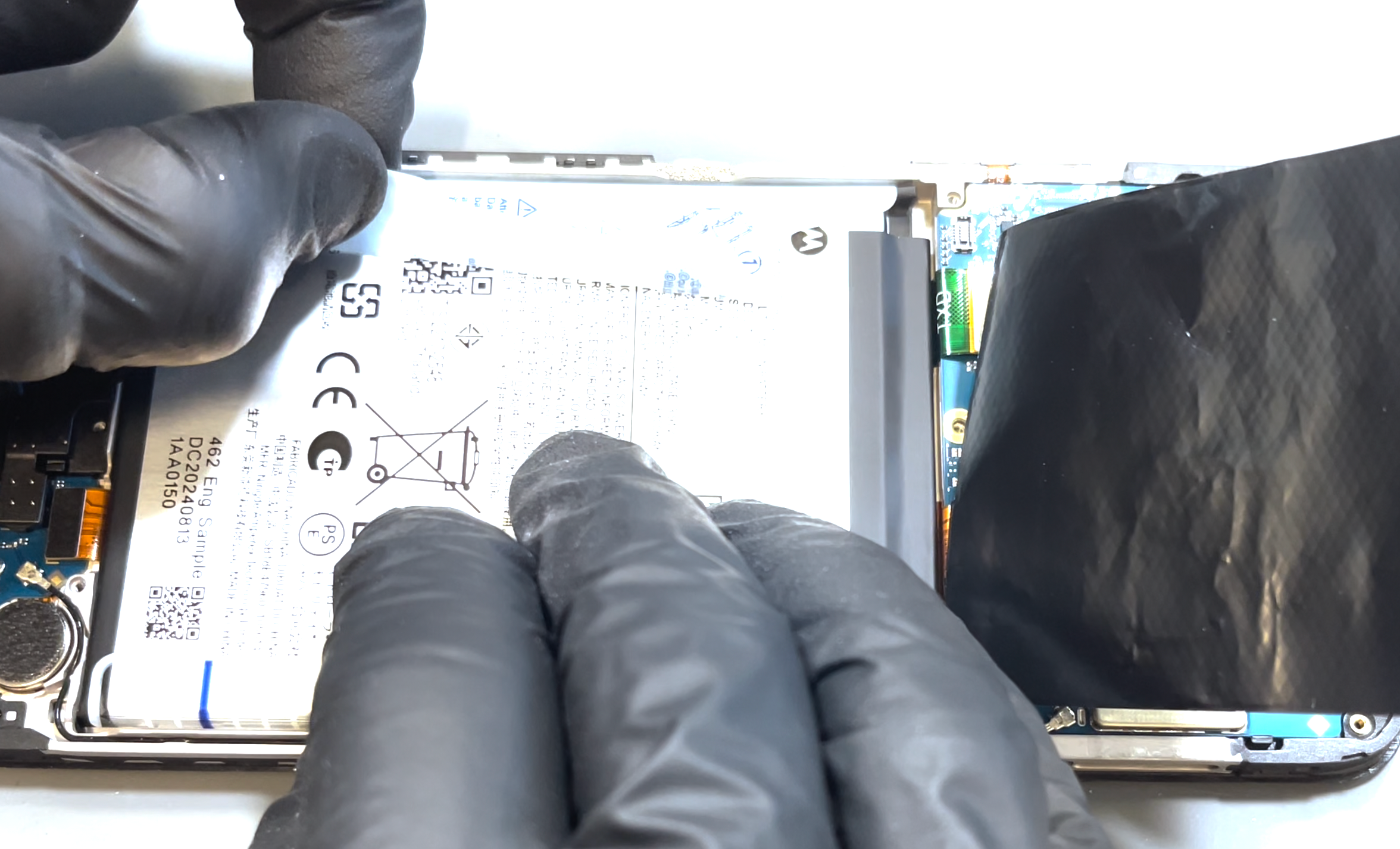
This model features the "Easy Removal System"—but even so, removing the battery may still require a bit of effort.
Start by heating the front of the phone (never the battery directly) using a heat gun on a low setting or a hairdryer on medium for no more than 5 minutes. Once the device is warm to the touch, peel back the stickers labeled "1" and "2" on the battery and tuck them out of the way.
Next, lift sticker "3" and begin pulling the battery upward. It may take some effort—apply more heat if needed. As you pull, you’ll hear the adhesive releasing. Remove both the battery and sticker. Don’t worry about leftover adhesive mess.
- Charge Port Removal
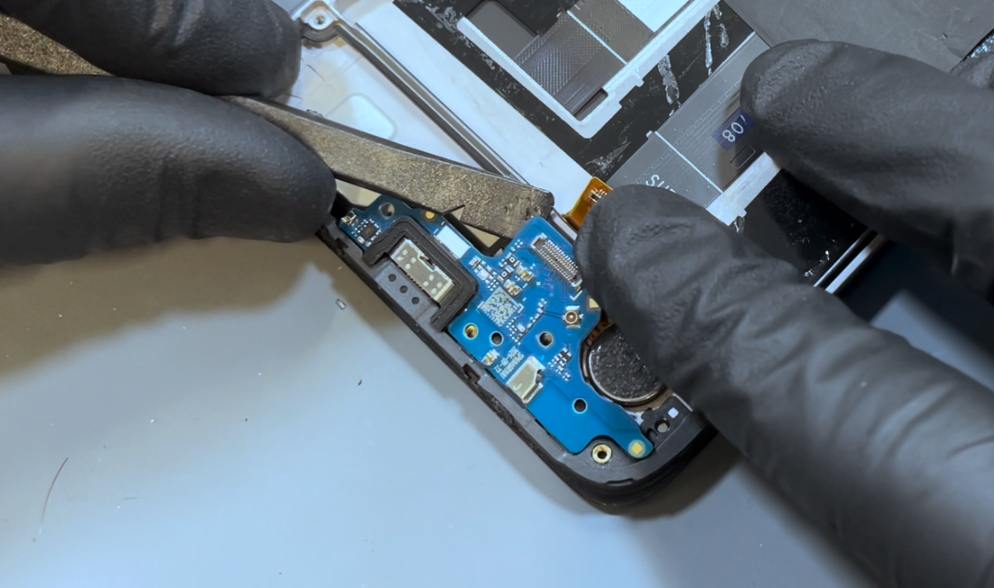
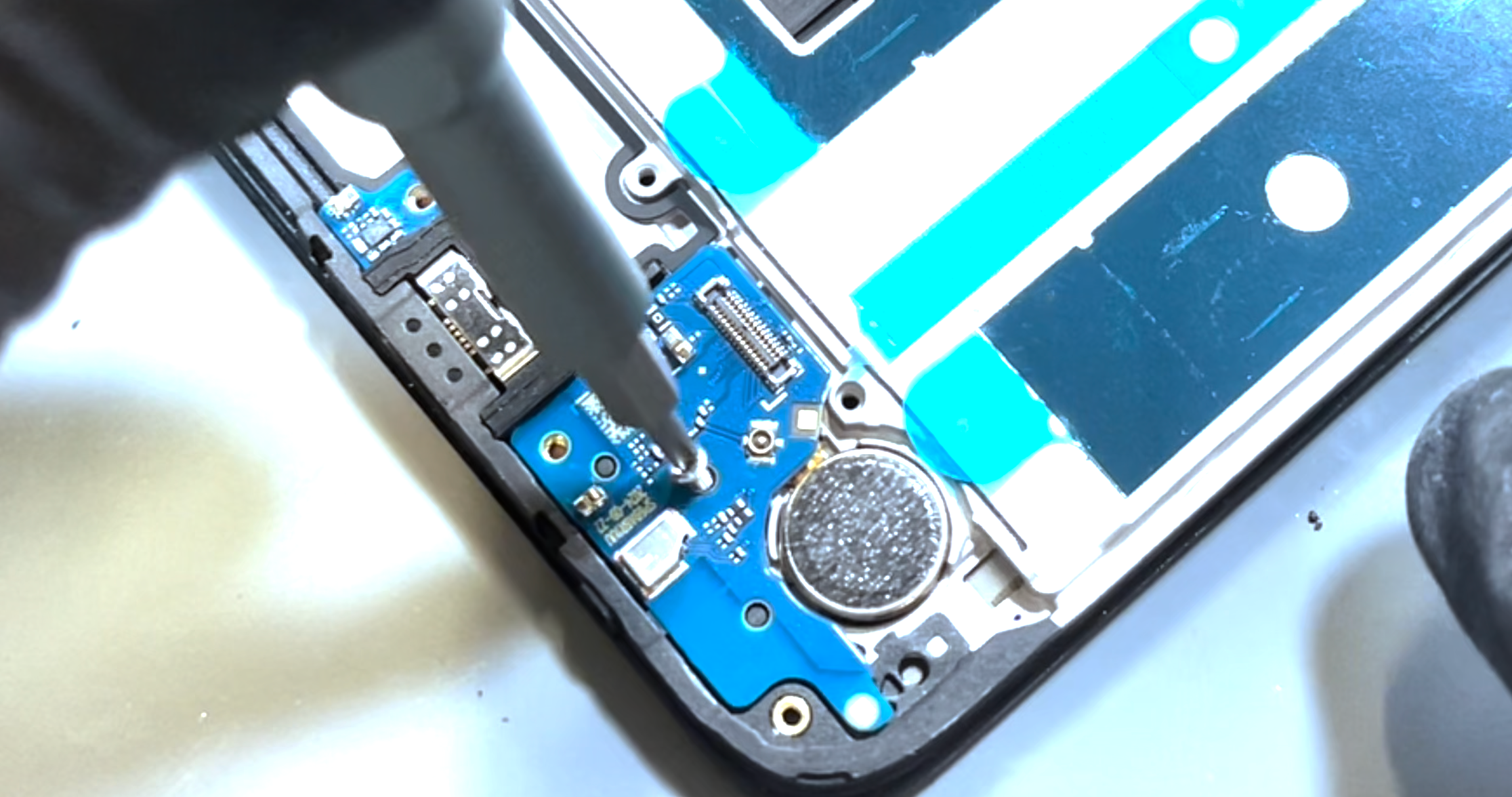
Insert the pry tool at the location shown to pop out the loudspeaker. Once removed, disconnect the flex cable and the black coaxial cable. For the coaxial cable, use the pointed end of your probe tool to gently lift from the neck of the connector with light pressure.
Next, remove the retaining screw, then carefully lift the board from the back edge and slide it out.
Using metal tweezers, gently slide them under the base of the vibrating motor. Wriggle slightly until the adhesive gives way, then lift it out. Try to keep the adhesive intact on the vibrating motor, and set it aside safely.
- Motherboard & Small Part Removal
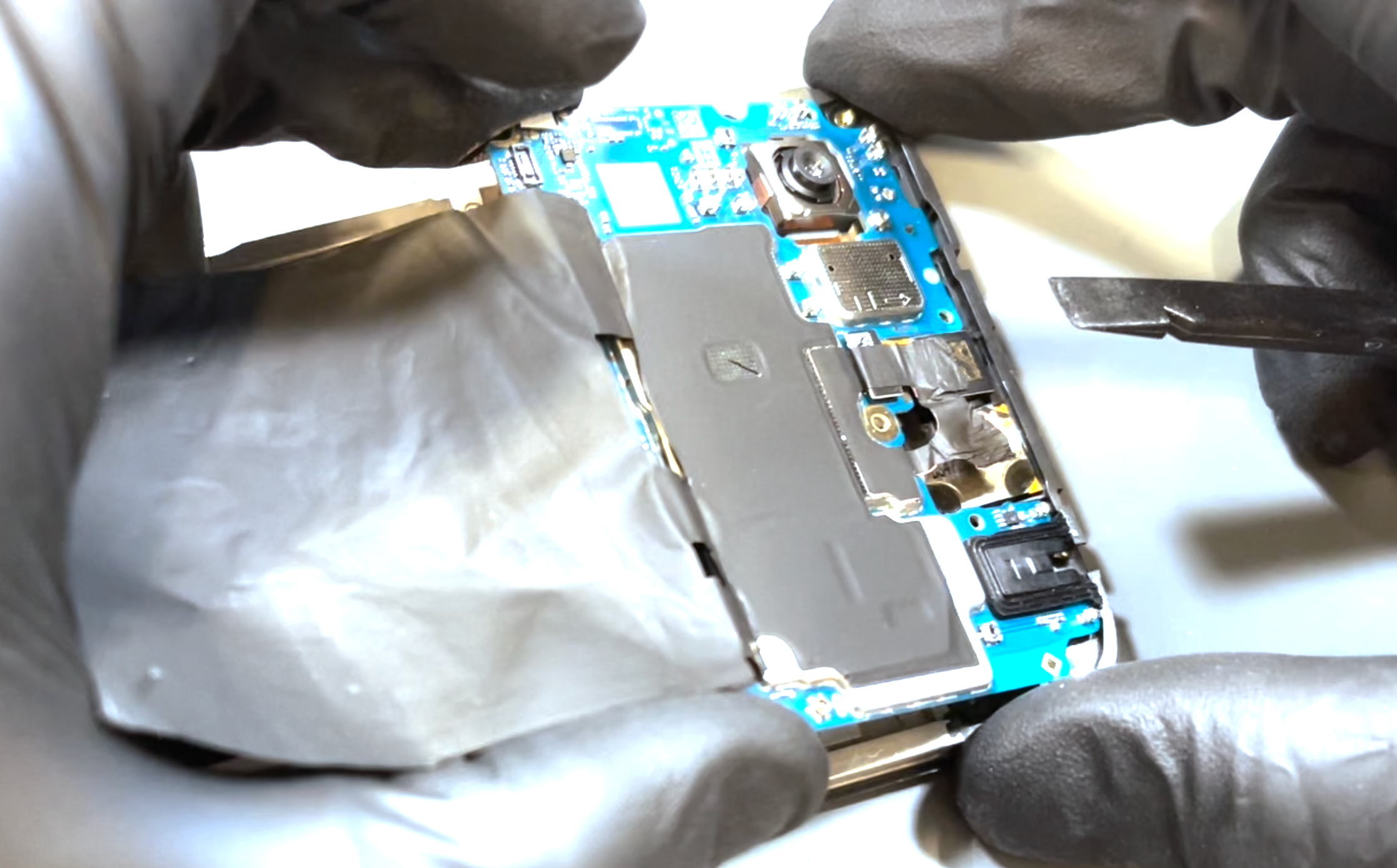
Using the flat end of your probe tool, carefully and slowly begin separating the copper and heat shielding from the earpiece speaker until it’s fully detached. If you’re not comfortable with this step, the shielding can be removed and replaced entirely.
Next, disconnect the two flex cables beneath the black shielding over the battery, along with the black coaxial cable. For the coaxial connector, use the pointed end of your probe tool and gently apply pressure under the neck of the connector to release it.
With the cables disconnected, use the probe tool to gently pry up the motherboard from the left side. Once it begins to lift, repeat the process on the right until the board sits loosely. Carefully lift and remove the board.
Use a dry cloth to clean off any remaining heat compound from both the motherboard and the phone’s frame.
Now, apply heat to the earpiece speaker and power/volume button area using a heat gun on a low setting or a hairdryer on medium. Once warm, use the pointed end of your probe tool to gently lift out the earpiece speaker. Slide the tool under the flex cable to fully release it. Remove any leftover adhesive—your new screen will come with pre-installed adhesive for reassembly.
Next, use metal tweezers to carefully lift the contact pad adhered to the phone’s frame that connects to the power/volume buttons. Once detached, use the spade end of your probe tool to gently remove the button flex cable. Try to retain the original adhesive on the buttons if possible.
Finally, remove the black coaxial cable and the main flex cable from the old screen. The coaxial cable will lift out easily, while the main flex is held by mild adhesive—gently peel it away.
- Charging Port Installation
Unpack your new screen and get ready for reassembly.
Start by installing the vibrating motor. The existing adhesive should be enough to hold it in place, but if needed, a small amount of new adhesive can be applied. Press the motor into its designated slot and apply light pressure to the flex cable to ensure it sits flat against the new screen.
Next, install the charging port and secure it with the silver screw you removed earlier.
Peel off the protective film covering the screen's adhesive for the main flexible cable. Lay the main flex cable in place—make sure the side labeled “Sub” is positioned closest to the charging port. Use the two alignment lines on the cable to help position it accurately. Once aligned, reconnect the flex cable to the charging port.
Now, install the black coaxial cable. Use a probe tool or tweezers to help align the connector, then apply gentle pressure until it snaps into place. Route the black coaxial cable through the channel beside the vibrating motor, guiding it back up into the phone’s chassis as shown in the video.
Finally, reinstall the loudspeaker by popping it back into place.
- Motherboard, Small Parts & Battery Installation
Install the power/volume flex cable. In most cases, the original adhesive will still be effective—if not, apply new adhesive after fully removing any remnants of the old one. Ensure the metal contact pad is correctly seated in its designated recess on the new screen.
Next, remove and discard the blue protective lens cover and earpeice adheisve protector from the new screen.
Apply fresh heat compound to the indicated areas on the new screen. Once that’s done, install the earpiece by pressing it gently into place, making sure the contact pad aligns properly with its location.
Now install the motherboard. Begin by positioning the top edge into the phone’s frame, ensuring the front camera sits correctly in its bracket. Before fully pressing the board into place, double-check that the two flexible cables and the black coaxial cable are clear and not trapped underneath.
Once the board is seated, lift the screen flex cable, remove the protective film covering its adhesive, and press it down to secure it to the new screen.
Press the copper shielding back into place over the front camera and earpiece.
Reconnect the two flex cables and the black coaxial cable. If needed, use plastic tweezers to align the coaxial connector and apply light pressure until it clicks into place.
Finally, remove the protective adhesive film from the battery compartment and press the new battery firmly into place.
- Main Frame Installation
Reconnect the battery, then loosely position the internal frame back on top of the phone. Reconnect the flex cable for the fingerprint sensor, ensuring it's securely attached.
Once connected, press the frame gently into place, applying light pressure around the edges—you should hear it click as it locks in.
When you're satisfied with the fit, secure the frame with all screws: 9 at the top and 7 at the bottom.
- Battery Cover Installation
Before installing the battery cover, it’s essential to thoroughly clean all old adhesive from the phone’s frame. Use a plastic probe tool (avoid metal to prevent damage) to carefully scrape away the adhesive. This can take a bit of time—light residue or surface marks are fine, but any lumps or clumps must be fully removed. Repeat this process on the battery cover. Once clean, apply gentle pressure to remove the flash diffuser, then clean off any remaining adhesive underneath.
With both surfaces clean, install the square foam adhesive and the three adhesive strips onto the phone’s chassis as shown in the video. If any adhesive remains, be sure it’s completely removed. Peel off all protective covers from the new adhesive, preparing the phone for the battery cover installation.
Next, install the main adhesive onto the battery cover. Remove it from its protective backing and loosely align it, starting from the top. If the alignment isn’t perfect on the first try, don’t worry—it can be lifted and repositioned, as demonstrated in the video. Once properly aligned, press the adhesive down firmly to bond it to the battery cover.
Now, remove the protective film from the main adhesive. You’re ready to install the battery cover—align it using the camera lenses as a guide, then press it firmly into place. Apply gentle, even pressure across all adhesive areas to ensure a strong, lasting bond.
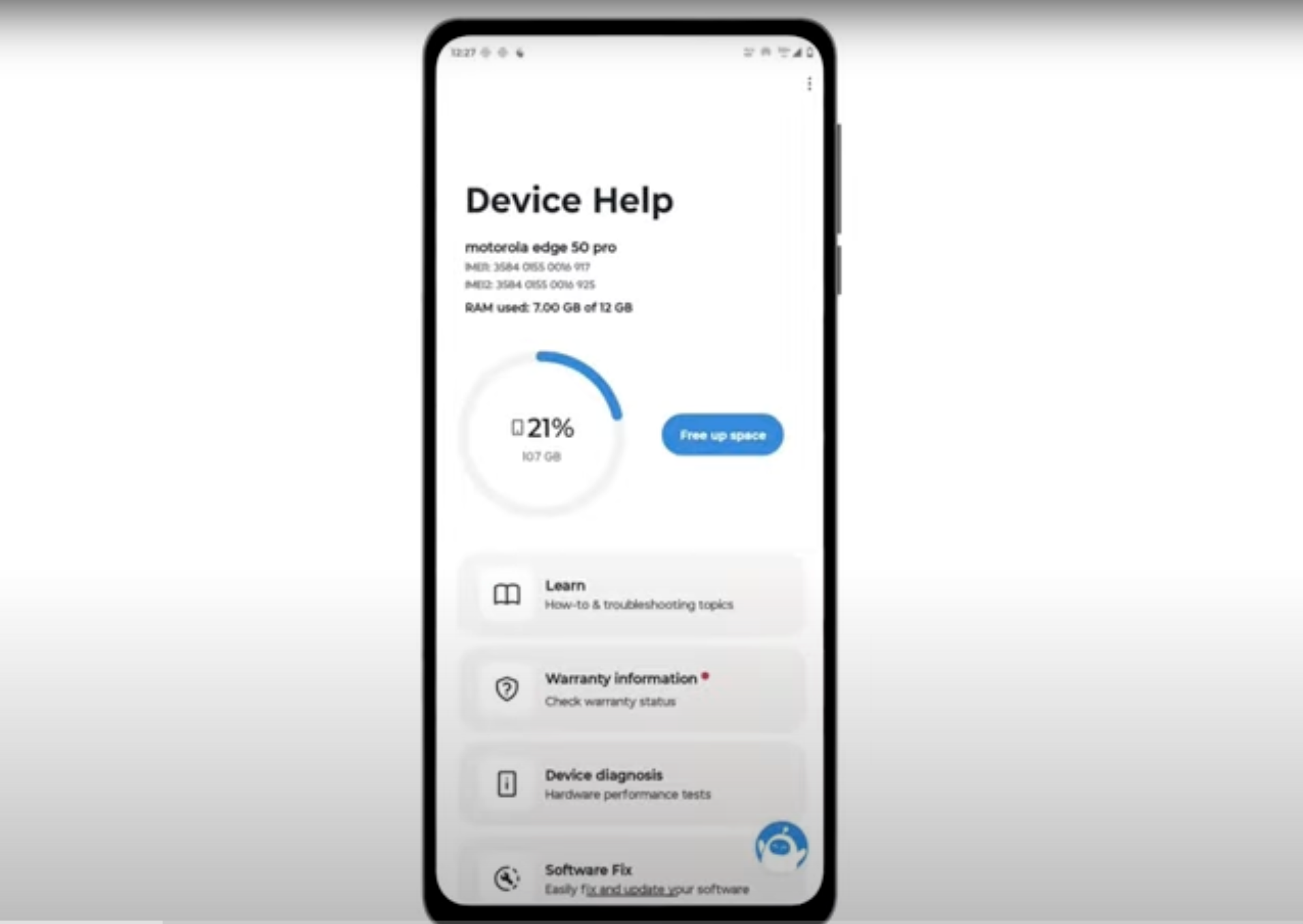
- Final Testing & Device Help App
Download and run Motorola Smart Assist to fully test your device and follow any required configuration.