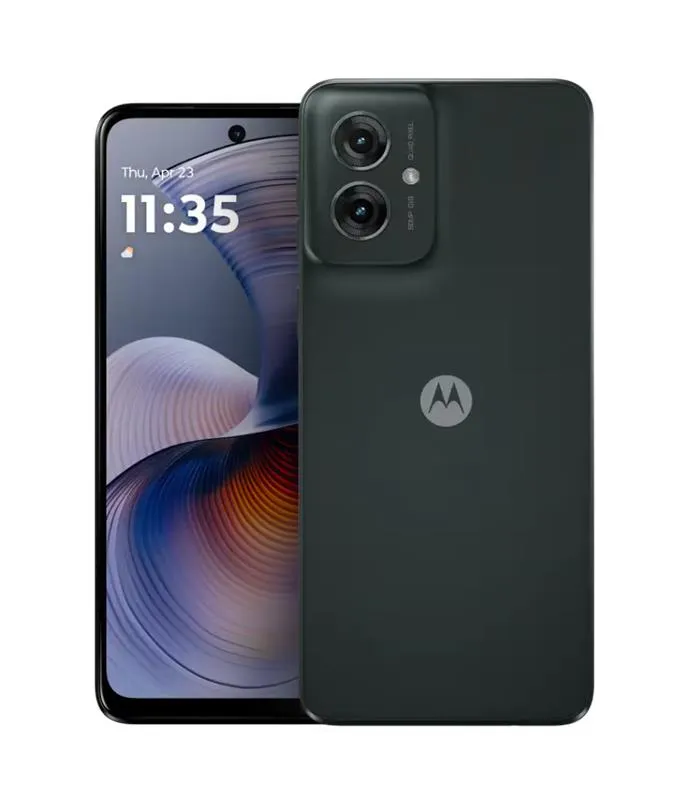
Follow this guide to replace the finger print sensor on your moto g55 using a genuine motorola replacement.
.Be sure you have the right part and tidy work area before you begin the repair.

15-20 MINUTES
VIDEO / PHOTO GUIDE
Follow this guide to replace the finger print sensor on your moto g55 using a genuine motorola replacement.
.Be sure you have the right part and tidy work area before you begin the repair.
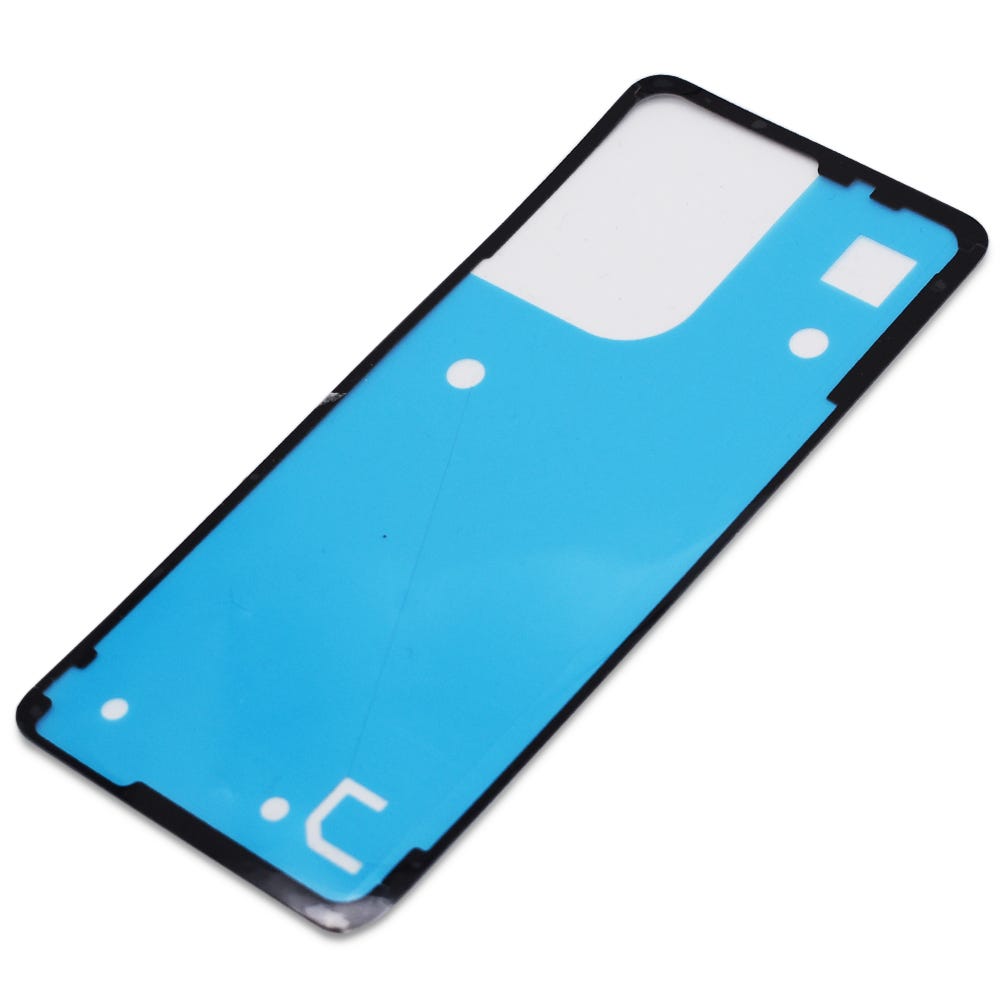
moto g55 5G | Battery Cover / Rear Panel Adhesive | Forest Grey (Desert Sage) | 5D78C28715
£2.88
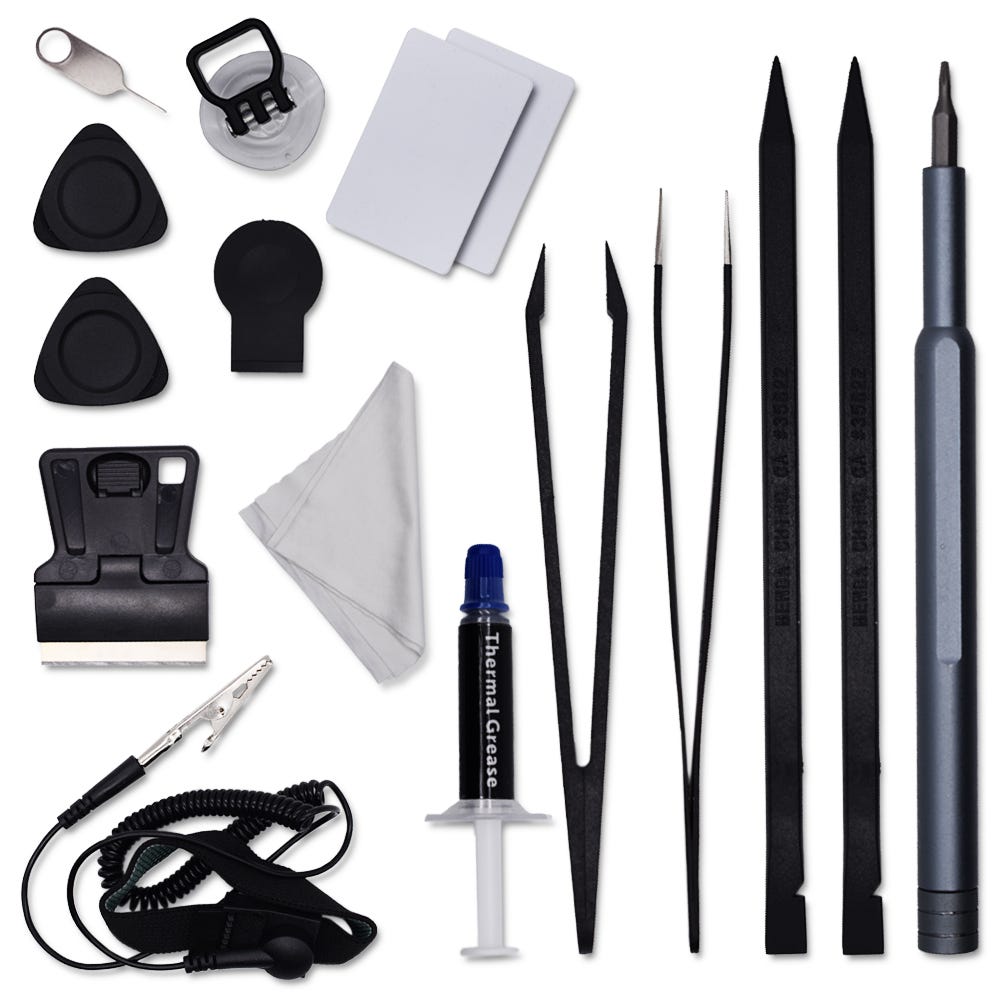
Motorola Complete Home Repair Tool Kit
£12.46
Be mindful of the flex cable connected to the frame when removing it; refer closely to the video for guidance to avoid accidental damage.
Take extra care to avoid touching the phone's camera lenses on the camera units or the inside of the camera lens on the battery cover to prevent smudges or contamination.

Use the SIM card ejection tool to remove the SIM card tray and SIM card.
Apply heat using a hairdryer on a medium setting or a heat gun on a low setting until the back of the phone is warm to the touch.
Using a thin, solid prying tool or a handled blade, gently pry the area between the battery cover and the frame until a small gap is created.
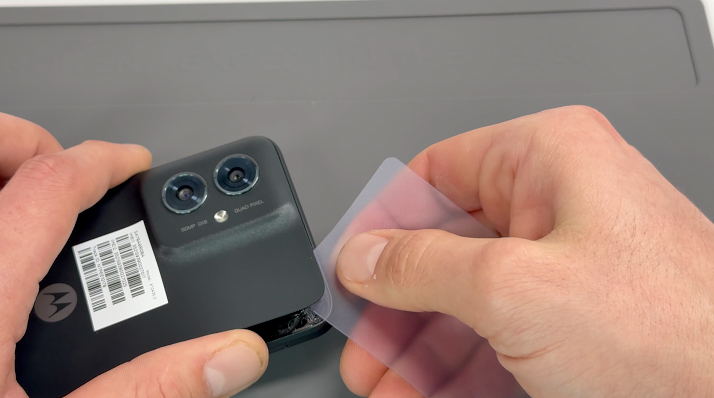
Insert a plastic card, playing card, or rigid card into the gap and carefully slide it around the edges to break the adhesive seal securing the battery cover. Once the seal is fully broken, remove the battery cover.
Clean off any remaining adhesive from the frame using a probe tool or by gently pulling and rubbing it away with your finger.
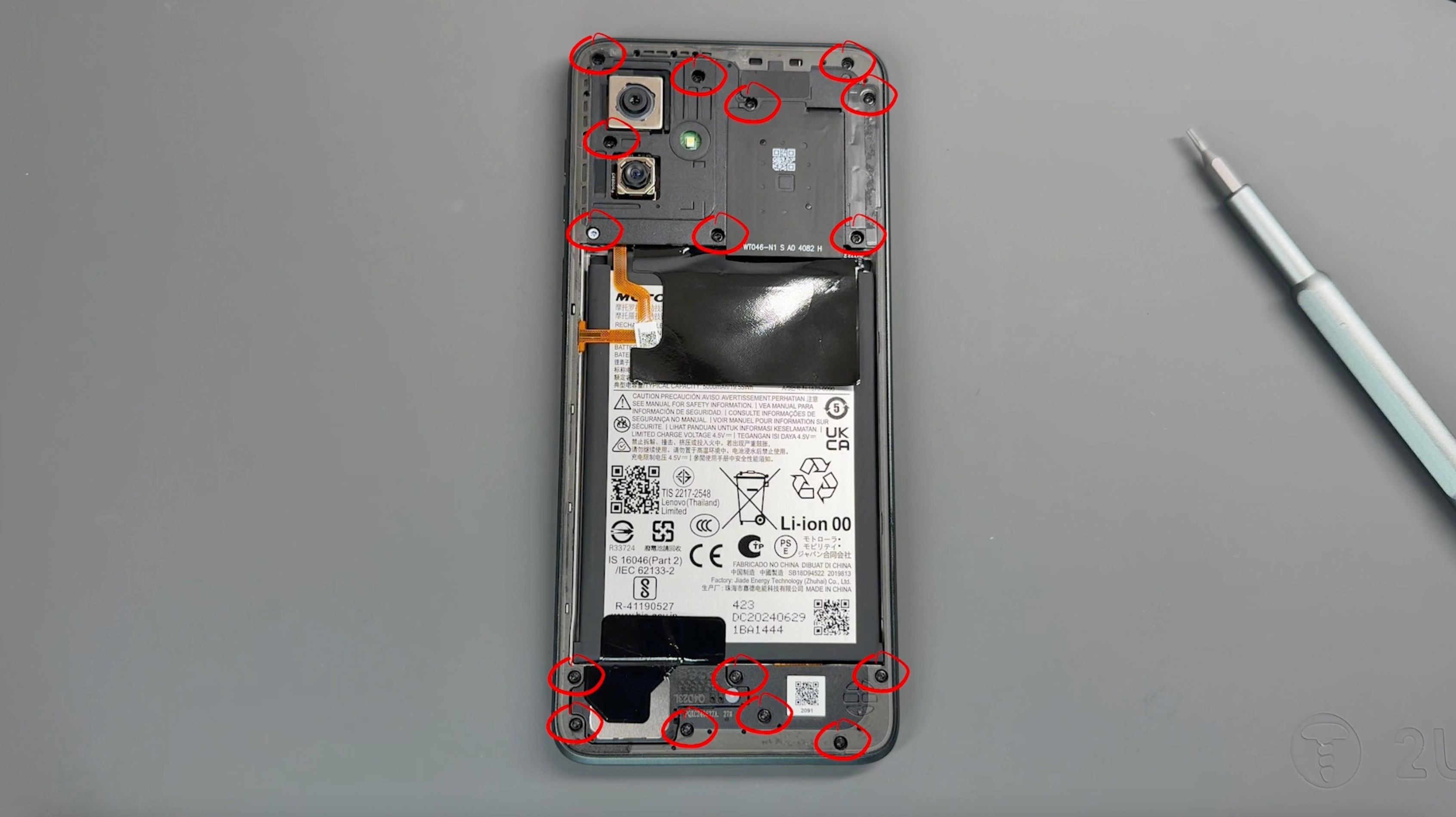
Remove the 16 screws securing the frame; don't worry, all screws are the same size. Be sure to keep them safe and avoid placing them near the edge of your workspace.
Use a pry tool to create a small gap between the screen and the frame. Carefully run the tool around the perimeter of the frame to gently loosen and separate it.
CAUTION: Before fully removing the frame, be mindful of the flex cable connecting the frame to the phone.
Pivot the frame from the left side, as demonstrated in the video, and use a probe tool to gently release the connector.
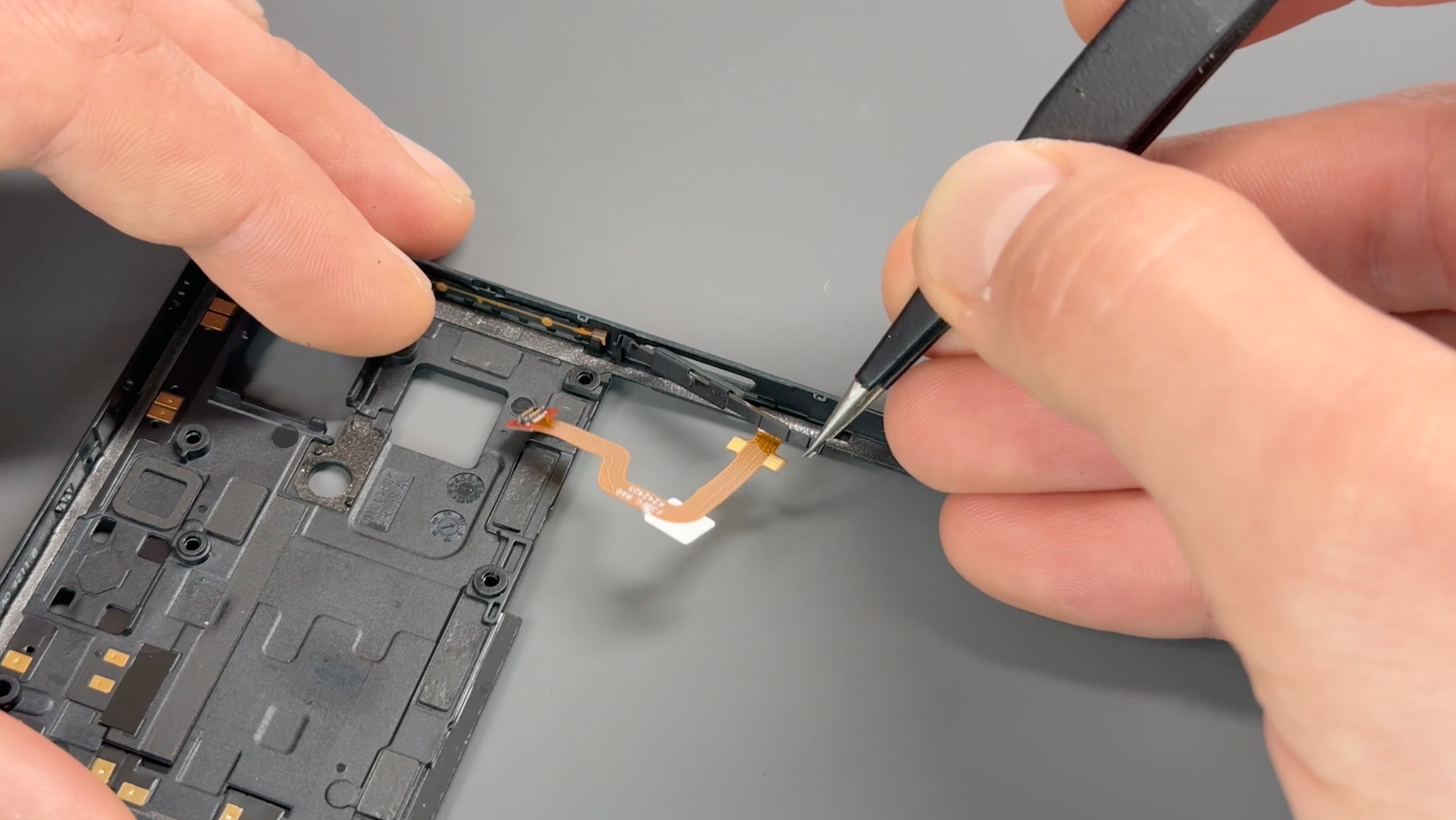
The sensor is secured using a simple bracket system.
Gently apply upward pressure to the brackets on the left and right sides of the button to release it.
To install the new button, position it correctly in the bracket system, then apply light downward pressure on the brackets on the left and right sides to securely lock it into place.
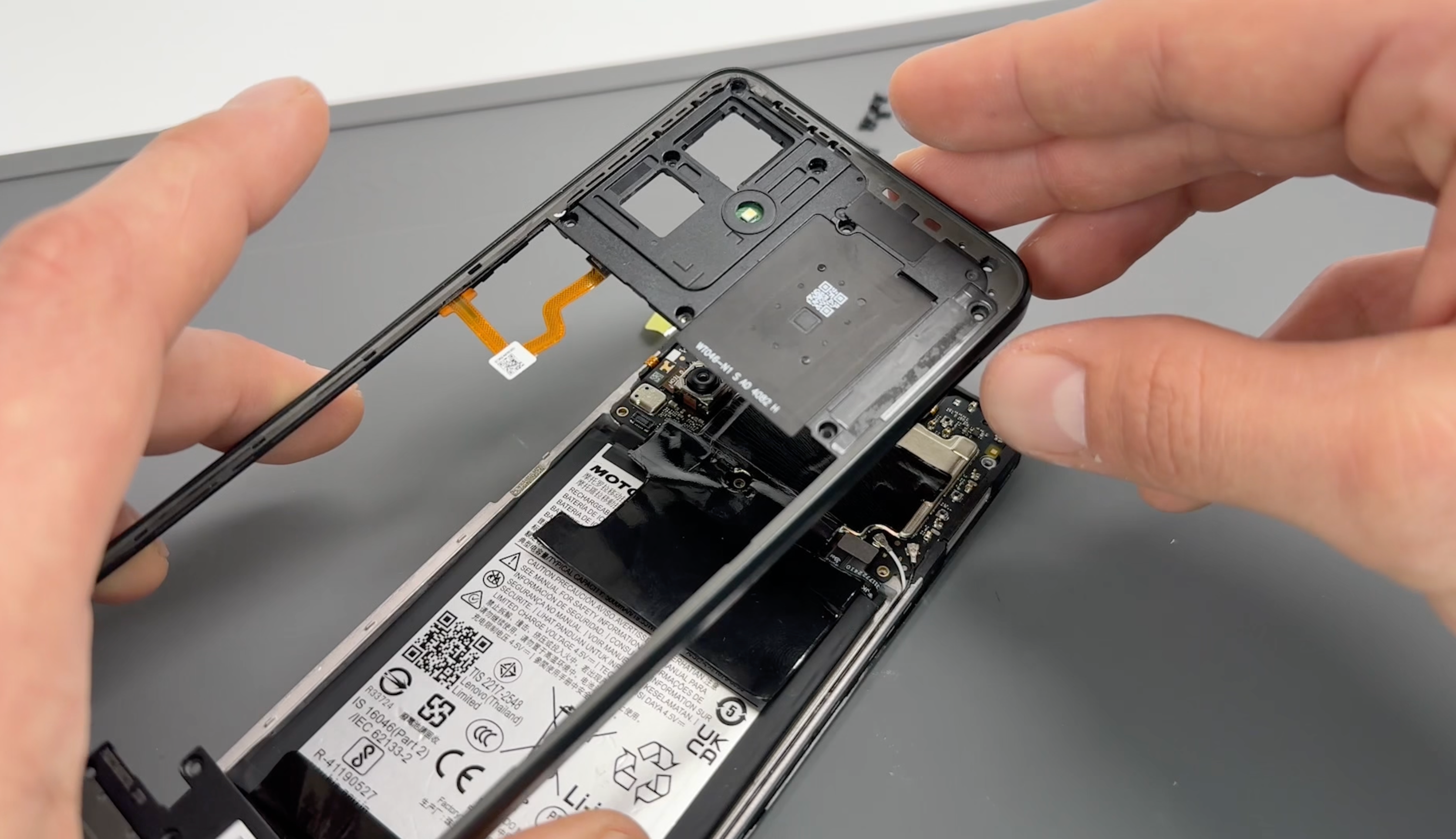
Align the fingerprint cable with its connector on the phone’s board and press firmly until you feel it click into place.
Apply even pressure around the frame to snap it back into place, ensuring it is fully secured as you work your way around the edges.
Reinsert the screws into the frame, turning them gently until they are secure. Avoid overtightening to prevent damage.
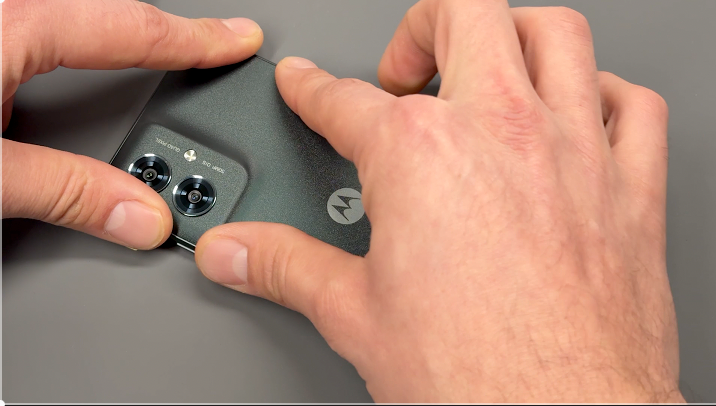
CAUTION: Ensure the inside of the battery cover and the camera units on the phone are free from dust or fingerprints before proceeding.
Check that the battery cover is free of any old adhesive. If any remains, simply peel it off or rub it away with your finger.
Align the new adhesive with the battery cover, ensuring proper placement, and press firmly to allow the adhesive to bond securely to the cover.
Carefully remove the protective film from the adhesive, peeling slowly to prevent it from lifting.
Reattach the battery cover to the phone, aligning it properly, and apply firm pressure around the edges of the device to ensure a secure seal.
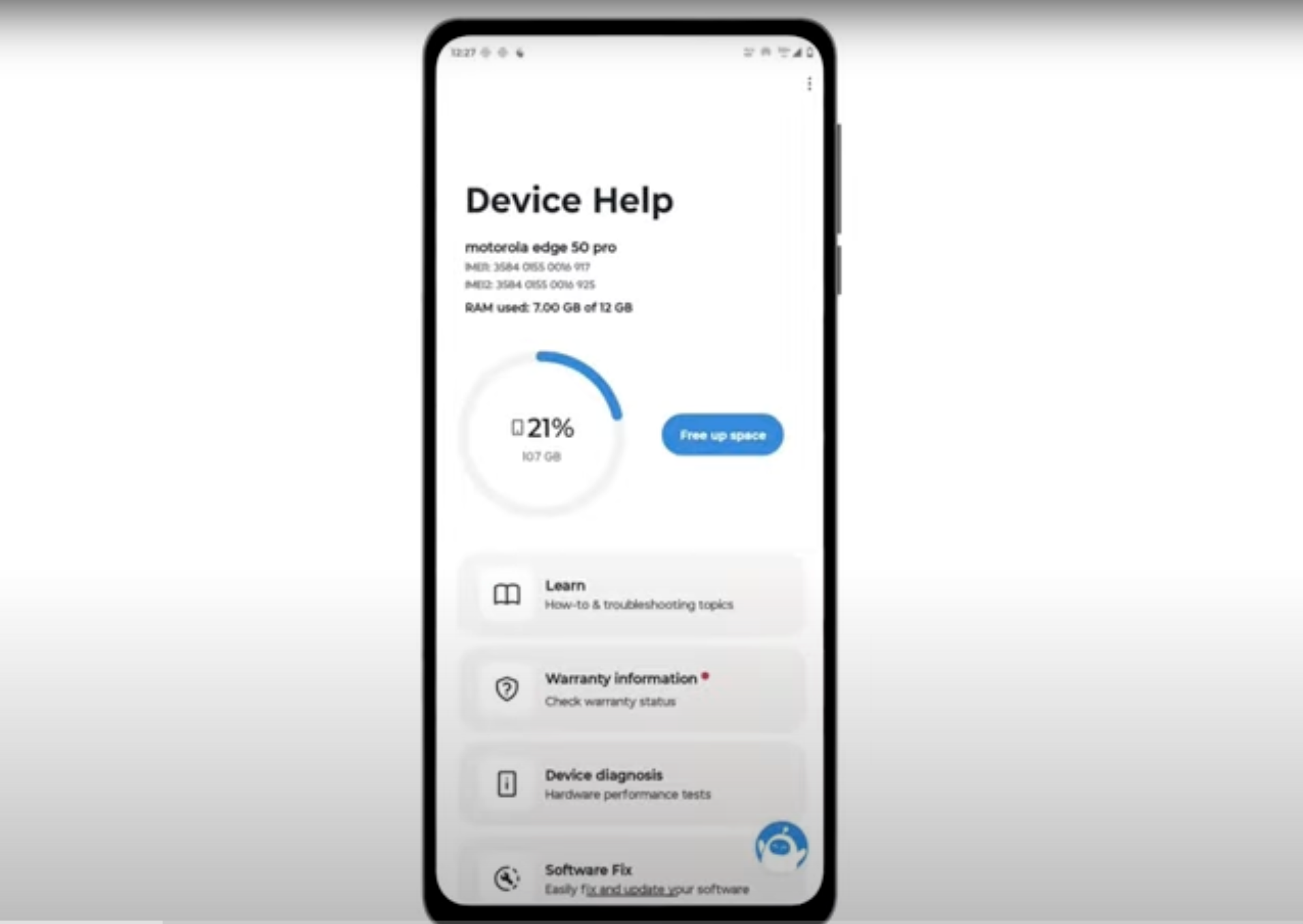
Download and run Motorola Smart Assist to fully test your device and follow any required configuration.